
Best Free LinkedIn Hashtag Generator [AI Powered]
The LinkedIn Hashtag Generator turns your post topic and industry into three sets of hashtags, with 3, 5, 10 or 15 tags in each set, ready to copy into your LinkedIn post.
Grow your Business & Social Media Marketing
- Branded Link Shortener
- QR Code Generator
- Bio Page Builder
- Tracking & Analytics
- 16+ Integrations
What the LinkedIn hashtag generator does
The LinkedIn hashtag generator suggests hashtags for one post at a time, based on what the post says and the field you work in. You get three clusters, each built around a different angle of your topic, so you can pick the set that fits how you want the post to be found.
It suits anyone who posts on LinkedIn for work: a consultant sharing a lesson, a recruiter posting a role, a marketer announcing a webinar, or a founder writing about the product. It’s free, there’s no sign-up, and nothing is posted for you. You copy the tags and paste them into LinkedIn yourself.
The tool doesn’t show follower counts, search volume or trend data for any hashtag. An AI model reads your topic and writes the suggestions, so treat them as a shortlist to review, not a ranking.
How to use the LinkedIn hashtag generator
Fill in four fields and click Generate Hashtags:
- Post Topic / Core Message. Describe the post in a sentence or two. “Lessons from cutting our customer acquisition cost with account-based marketing” gives the AI far more to work with than “marketing”.
- Your Industry / Profession. For example FinTech, Recruitment or B2B SaaS Marketing. This steers the tags toward the words people in your field actually use.
- LinkedIn Strategy. Thought Leadership & Authority, Networking & Broad Reach, Job Search & Recruitment, or Event / Conference Focus.
- Number of Hashtags. 3, 5, 10 or 15. The number applies to each of the three clusters, so picking 5 gives you 15 tags in total and picking 15 gives you 45.
Both text fields are required. Clear empties the form and hides the results. There’s no regenerate button: to get a different set, change the topic or the strategy and click Generate again.
What you get: an example from our test
You get three hashtag clusters, each with a title, a Copy All button, the tags as clickable pills and a one-line strategy tip. In our test on November 2, 2026, we described a post about cutting a B2B SaaS company’s customer acquisition cost by 30% with account-based marketing, set the industry to B2B SaaS Marketing, and chose Thought Leadership & Authority with 5 hashtags. The results appeared in about 5.4 seconds.
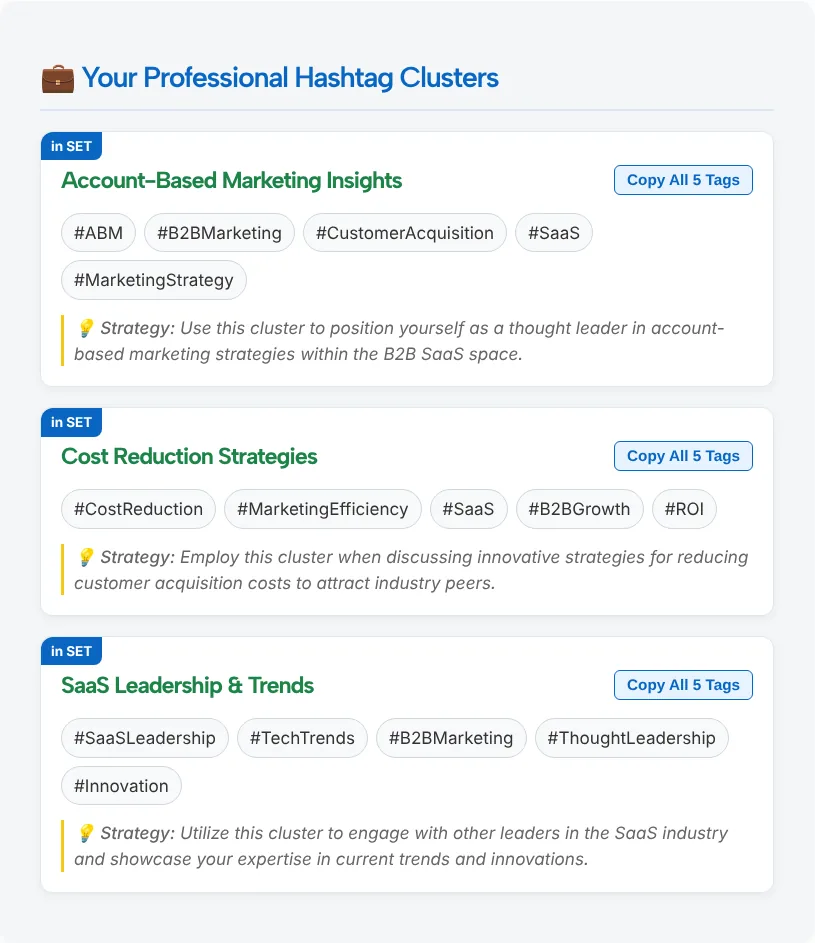
Here is what the three clusters contained:
- Account-Based Marketing Insights: #ABM, #B2BMarketing, #CustomerAcquisition, #SaaS, #MarketingStrategy
- Cost Reduction Strategies: #CostReduction, #MarketingEfficiency, #SaaS, #B2BGrowth, #ROI
- SaaS Leadership & Trends: #SaaSLeadership, #TechTrends, #B2BMarketing, #ThoughtLeadership, #Innovation
Two things stood out. The clusters overlap: #SaaS and #B2BMarketing each show up twice, so the 15 tags hold only 13 different ones. If you mix tags from two clusters, delete the repeats. And a few tags are very broad. #Innovation could sit on almost any post, while #ABM tells a reader exactly what you’re writing about.
Copy All copies the whole cluster as one line with spaces between the tags. Clicking a single pill copies just that tag, which helps when you want to build your own mix.
How many hashtags to use on LinkedIn
A few hashtags that name your actual topic work better than a long list. We couldn’t find a current LinkedIn help article that sets a recommended number (we checked in November 2026), so there’s no official count to follow.
What LinkedIn has said is about purpose, not quantity. In January 2024, a LinkedIn spokesperson told Social Media Today that hashtags help viewers “easily identify what a post is about and find other related posts.” In other words, a hashtag is a label. Five sharp labels say more than fifteen vague ones.
The form’s “3 Hashtags (LinkedIn Best Practice)” option is the tool’s own suggestion, not a LinkedIn rule. A practical default is to generate 3 or 5 per cluster, then keep the best few tags from one cluster.
Put the tags at the end of the post, on their own line, or use one inline when it reads as a normal word, as in “our #ABM pilot.” Keep them out of your opening lines, which are what people see before they click “see more.” Capitalize each word inside a tag, like #CustomerAcquisition, so it’s easy to read.
Check and edit the tags before you post
The generator gives you raw material, and a quick edit makes the difference between tags that describe your post and tags that just fill space.
- Remove repeats. As our test showed, the same tag can appear in more than one cluster.
- Search each tag on LinkedIn. Type it into the LinkedIn search bar and look at the posts that come up. If they’re old, off-topic or missing, drop the tag.
- Keep broad tags to one at most. #Innovation or #Leadership describe half the feed. A niche tag like #CustomerAcquisition says more about your post.
- Tag the topic, not your goal. #ThoughtLeadership names the strategy we picked in the form. It tells a reader nothing about what the post covers.
- Retire event tags after the event. A conference tag helps during the week people are talking about it. Months later it’s just noise on your post.
Which LinkedIn strategy setting to choose
Pick the strategy that matches what the post is for. The setting only steers the AI’s word choice, so the topic you type still matters most.
| You’re posting | Strategy | Count to start with |
|---|---|---|
| A lesson, opinion or case study | Thought Leadership & Authority | 3 or 5 |
| A question to your network or a general update | Networking & Broad Reach | 5 |
| An open role or a post saying you’re open to work | Job Search & Recruitment | 3 |
| A talk, booth or recap from a conference | Event / Conference Focus | 3, plus the organizer’s official tag |
Still writing the post itself? The LinkedIn Post Generator drafts it from your idea, and you can paste the finished text back here as the topic. For how hashtags fit into a wider LinkedIn content plan, read our guide on how to use LinkedIn hashtags.
Put All Your Links on One Bio Page
Build a free Link in Bio page with TLinky. Add your links, products and social profiles, pick a theme, and see how many people visit.
Tools You May Need for Professional Social Media Hashtags
LinkedIn Hashtag Generator FAQ
Is the LinkedIn hashtag generator free?
Yes. The tool is free to use and needs no account or sign-up. You type your topic and industry, choose a strategy and a count, and the hashtags appear on the same page, ready to copy. It never connects to your LinkedIn profile or posts anything for you.
How many hashtags will I get?
You get three clusters, each with the number you pick: 3, 5, 10 or 15. That adds up to 9, 15, 30 or 45 tags in total. You don’t have to use them all. A post usually reads better with the best few tags from one cluster.
Does the tool show which LinkedIn hashtags are popular?
No. It doesn’t show follower counts, search volume or trend data. An AI model writes the tags from your topic and industry. To judge a tag, search it on LinkedIn and check whether recent posts under it match your subject.
Why do some hashtags repeat across clusters?
The three clusters cover different angles of the same topic, so the core tags can overlap. In our test, #SaaS and #B2BMarketing each appeared in two clusters. Delete the duplicates when you combine tags from more than one set.
Where should hashtags go in a LinkedIn post?
The end of the post is the cleanest spot, on its own line after your last sentence. You can also use one inline when it reads naturally, such as “our #ABM pilot.” Avoid packing tags into the opening lines, since those are what people see before “see more.”
Can I use it for a LinkedIn company page?
Yes. The tool doesn’t know who will publish the post, so it works the same for a personal profile or a company page. Set the industry to your company’s field and describe the post the way you’d explain it to a colleague.