LinkedIn Post Generator
The LinkedIn Post Generator turns a few sentences about your idea into 1, 3 or 5 free post drafts with a hook, short paragraphs, a call to action and hashtags.
Grow your Business & Social Media Marketing
- Branded Link Shortener
- QR Code Generator
- Bio Page Builder
- Tracking & Analytics
- 16+ Integrations
Tools You May Need for LinkedIn Content Creation
What the LinkedIn Post Generator does
The LinkedIn Post Generator turns a few sentences about your idea into LinkedIn post drafts you can edit and publish. You describe the topic, pick a goal, a tone, a length and a call to action, and it writes 1, 3 or 5 versions, each with its own Copy button.
It’s built for founders, marketers, recruiters and anyone who knows what they want to say but gets stuck on the first line. The tool is free and needs no sign-up. It never posts anything for you: you copy the draft you like and publish it from your own account.
How to use the post generator
Write your topic, set the five dropdowns, and click Generate LinkedIn Posts.
- Post Topic / Core Idea. The only required field. Write a few sentences rather than a keyword: what happened, what you learned and any real numbers. The form rejects a topic shorter than 5 characters.
- Primary Goal. Thought Leadership, Drive Traffic, Network Engagement or Recruitment/Hiring.
- Desired Style/Tone. Authoritative, Relatable, Inspirational or Controversial.
- Post Length. Short (labeled “Max 6 lines before See More” in the form), Medium, or Long for a detailed, newsletter-style post.
- Call-to-Action (CTA) Type. Ask a Question, Direct Link Click, Tag Colleague, or Request DM for Resource/Guide.
- Number of Options. 1, 3 or 5 drafts.
The Clear button empties the form. One quirk: Clear sets Post Length to Medium, while the page first loads with Short selected, so glance at that field before you generate again.
Example: a post from our test
We ran the tool on November 2, 2026, with a product lesson as the topic: a team almost shipped a new reporting dashboard without talking to customers, and five 20-minute customer calls changed the whole design. We chose Thought Leadership, Relatable, Medium, Ask a Question and one option. The draft appeared in about 3.6 seconds.
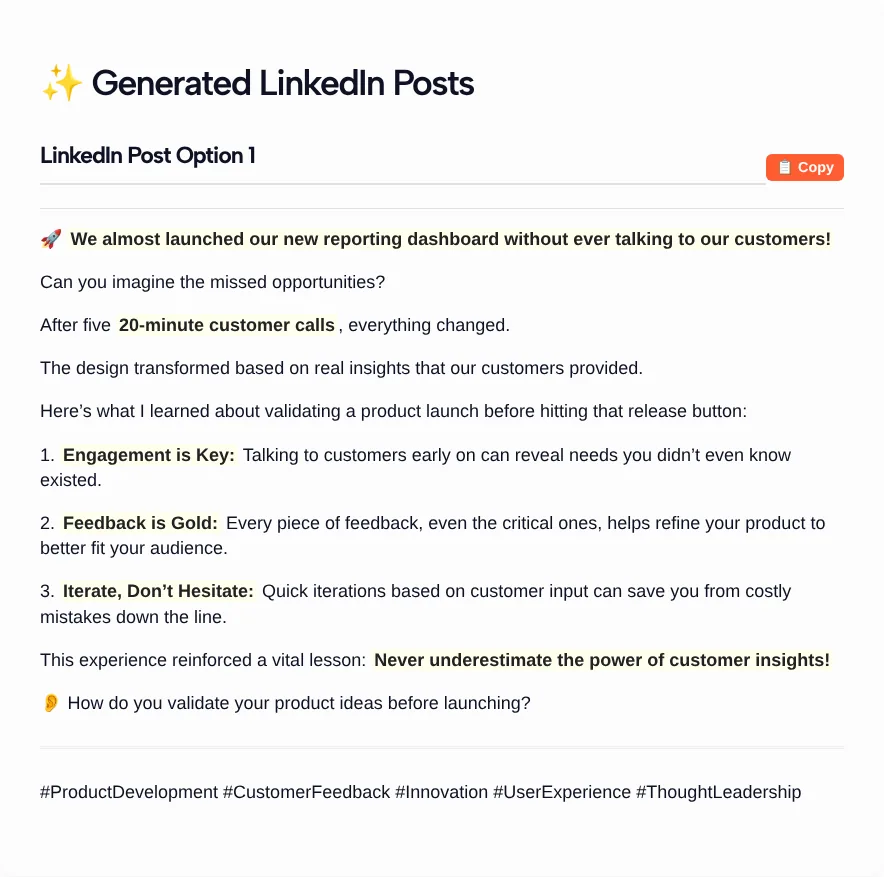
The draft used a layout that’s common on LinkedIn:
- A hook line with a rocket emoji, admitting the team almost launched without talking to customers
- Short paragraphs of one or two sentences with space between them
- Three numbered lessons titled Engagement is Key, Feedback is Gold, and Iterate, Don’t Hesitate
- A closing question that matched our CTA choice: “How do you validate your product ideas before launching?”
- Five hashtags under a divider, from #ProductDevelopment to #ThoughtLeadership
There’s no character count, no quality score and no regenerate button. To see a different angle, change a setting or add detail to the topic and click Generate again.
Edit the draft so it sounds like you
Treat the output as a first draft. In our test the structure was usable right away, but the wording needed a pass before it sounded like a real person.
- Make the lessons specific. A line like “Feedback is Gold” fits any product. Replace each lesson with what the calls actually changed, such as a chart you dropped or a filter customers asked for.
- Cut the extra question. Our draft asked “Can you imagine the missed opportunities?” right after the hook. One question at the end is enough.
- Check the hashtags. #ThoughtLeadership names the goal we picked, not the topic. Keep the tags people in your field would actually search for.
- Read it out loud. If a sentence sounds like an ad, rewrite it the way you’d say it to a colleague.
Once the words are right, paste the post into our LinkedIn text formatter to bold a key phrase or tidy the numbered list, and preview where the “see more” cut falls before you publish.
LinkedIn post character limit
A LinkedIn post can contain up to 3,000 characters, according to LinkedIn Help. If you need more room than that, LinkedIn suggests writing an article instead.
The generator doesn’t count characters, so check the length yourself, especially with the Long setting. For scale, the Medium draft from our test came to about 940 characters, less than a third of the limit. The formatter linked above has a character counter that starts on the 3,000-character post preset.
Which settings fit which post
Match the dropdowns to the job the post has to do, starting from these combinations:
| Post you want to write | Primary Goal | Tone | CTA |
|---|---|---|---|
| A lesson from a project or launch | Thought Leadership | Relatable | Ask a Question |
| Your take on a common industry habit | Network Engagement | Controversial | Ask a Question |
| A new article, webinar or product page | Drive Traffic | Authoritative | Direct Link Click |
| A free checklist or template you give away | Thought Leadership | Authoritative | Request DM for Resource/Guide |
| An open role on your team | Recruitment/Hiring | Inspirational | Tag Colleague |
| An event recap that thanks people | Network Engagement | Relatable | Tag Colleague |
The Controversial tone works best when you can back the opinion with your own experience, because the tool knows nothing beyond what you type. For a hiring post, write the role first with the job description generator, then put the title, location and what the person will own into the topic box here.
LinkedIn Post Generator FAQ
Is the LinkedIn Post Generator free?
Yes. It’s one of TLinky’s free tools and you don’t need an account. Type your topic, choose the settings, and the drafts show up on the same page, ready to copy into LinkedIn.
Does it publish to my LinkedIn account?
No. The tool has no connection to LinkedIn and can’t see your profile or feed. It only writes drafts on the page. You copy the one you like, edit it, and post it from LinkedIn yourself.
How many drafts can I get at once?
You can ask for 1, 3 or 5 options in the Number of Options field, and each draft gets its own Copy button. Three is a good middle ground: enough hooks to compare without a lot of reading.
How long can a LinkedIn post be?
Up to 3,000 characters, according to LinkedIn Help. The generator doesn’t show a character count, so check the length of Long drafts before you publish, or run them through a counter first.
Does the tool add hashtags?
Yes, in our test the draft ended with five hashtags below a divider line. Read them before you post. One of ours, #ThoughtLeadership, named the goal setting rather than the topic, so we would delete it.
What does the Controversial tone do?
The form describes Controversial as opinionated and willing to challenge the status quo. We didn’t test this tone, so read the draft closely and keep only the claims you’d defend in the comments.