TikTok’s algorithm does not reward the most polished video. It rewards the most consistent one.
Understanding how the TikTok algorithm distributes content explains why editing speed matters as much as editing quality.
Brands operating successfully on the platform in 2026 publish daily or near-daily, according to research from AutoFaceless.
Most video editing tools were built for a different reality: one polished video per week, with a desktop timeline, multiple render passes, and a dedicated editor. That workflow works for YouTube. It does not work for TikTok.
The editing app you choose determines how fast you can move. A creator who can take a raw clip from phone to published post in 20 minutes can respond to trends the same day they emerge. A creator who needs two hours of desktop editing cannot.
78% of marketing teams now use AI-generated video, with generation volume growing 840% in two years, according to Kapwing’s Creator Report.
The tools have changed. The question is which one matches your output format and publication speed.
In this article, you will learn:
- Which apps are built for high-frequency mobile publishing versus polished desktop production
- Which tools have genuine TikTok-native features versus generic video editors with export presets
- What the CapCut terms-of-service change in means for creators who use it for branded content
- Which app fits your specific workflow based on what you actually publish
Get Free TikTok Ad Credit Up to $6000 [Limited Time Offer]
Key Takeaways
- TikTok’s algorithm rewards posting frequency, and 78% of marketing teams now use AI-generated video, according to Kapwing’s Creator Report, which means production speed matters as much as production quality.
- CapCut’s terms of service update granted ByteDance a broad license to use content created with CapCut templates for platform training purposes, which creates risk for branded content created with those templates.
- VN Video Editor is the only fully free app on this list with no watermark, no export limits, and no subscription requirement at any tier.
- DaVinci Resolve’s free version includes professional color grading tools used in commercial film and television production, making it the most capable free desktop editor available in 2026.
- Videos under 90 seconds achieve a 50% viewer retention rate, according to Vidico, which means the editing tools that make 15-second clips fast to produce outperform technically superior tools that slow you down.
Quick Answer: What Is the Best Video Editing App for TikTok?
CapCut is the most widely used editing app for TikTok because it is built by ByteDance, the same company that owns TikTok, and includes templates, auto-captions, and trending sounds directly tied to the platform. For creators who need a completely free option without watermarks, VN Video Editor is the strongest alternative. For professional desktop production, DaVinci Resolve offers broadcast-quality tools for free.
Video Editing Apps: Quick Comparison
| App | Best For | Free Plan | Starting Price |
|---|---|---|---|
| CapCut | TikTok-native templates and trending audio | Yes | $9.99/month |
| VN Video Editor | Fully free mobile editing without watermarks | Free | Free |
| InVideo AI | Text-to-video for high-volume content production | Yes (watermark) | $20/month |
| PowerDirector | Advanced multi-track mobile timeline editing | Yes | $5/month |
| Kapwing | Browser-based team video editing and AI tools | Yes (watermark) | $16/month |
| Splice | Music-synced editing for rhythm-driven content | Yes (watermark) | $9.99/month |
| DaVinci Resolve | Professional color grading and desktop production | Free (full version) | $295 one-time |
| Adobe Premiere Pro | Cross-device editing in the Adobe ecosystem | No | $22.99/month |
| Canva Video | Branded video creation with design templates | Yes | $18/month |
How We Evaluated Each App
Every app on this list was tested directly using its free plan or trial access. We evaluated on four criteria: how fast a creator can go from raw clip to published post, whether the tool includes TikTok-native features like auto-captions or trending audio, the real cost including export limits and watermarks on the free tier, and which publishing format and frequency each app supports best.
The 9 Best Video Editing Apps for TikTok and Reels in 2026
The right editing app depends on your production workflow, not your production ambitions. A creator publishing three times per day needs a different tool than a brand producing one high-quality weekly video. Each entry below covers what the app actually enables and what it costs.
1. CapCut
Best for: TikTok creators who want the fastest path from raw footage to a trend-ready video with auto-captions, templates, and TikTok sounds built in
CapCut is built by ByteDance, the same company that owns TikTok. That relationship produces features no independent editor can replicate: real-time access to trending TikTok sounds, templates built from viral video formats, and a direct publish flow to TikTok without leaving the app.
If you want a deeper look at the editor before choosing it, our CapCut review breaks down its features, pricing, and overall strengths and limitations.

Auto-captioning works faster and more accurately than any third-party transcription tool on this list. The captions appear in the right place, in the right format, with one tap. For creators who publish captioned video consistently, that single feature saves 10 to 15 minutes per video.
The AI tools in CapCut’s version include script generation, auto-highlight selection from longer footage, and background removal without green screen. These features are practical rather than promotional: they reduce the number of decisions a creator needs to make per video.
The terms-of-service update is a genuine consideration for branded content creators. CapCut’s updated terms grant ByteDance a broad license to use content created with CapCut templates for platform training and promotional purposes. Creators using CapCut’s templates for client work or brand campaigns should review that language before publishing.
Connecting your edited TikTok content to real performance data requires external tracking. The TikTok analytics guide covers which metrics to monitor after publishing, and where TikTok’s native dashboard stops short.
Key features:
- Real-time access to trending TikTok sounds and viral video templates
- One-tap auto-captions with style and position customization
- AI script generator, highlight reel creator, and green-screen-free background removal
- Direct publish to TikTok without leaving the app
- Multi-layer timeline with text, stickers, transitions, and effects
- CapCut for desktop available for longer-form projects on the same account
Pros:
- TikTok-native features like trending sounds and direct publish are not available in any non-ByteDance editor
- Auto-captions outperform every third-party transcription tool tested in speed and accuracy
- Free plan is genuinely functional for most short-form content without a watermark on standard exports
Cons:
- Terms-of-service update grants ByteDance a license to use template-based content for training purposes, which creates risk for branded or client work
- AI features on the free plan are usage-limited and reset monthly
Not for: Creators producing branded content for clients or campaigns where content rights and platform licensing restrictions are a legal or contractual concern.
Why we included this: CapCut is the dominant mobile editor for short-form content, and any honest list of TikTok editing tools starts here. The terms-of-service flag is not a reason to avoid it for personal content. It is context every professional creator should have before using templates for paid work.
Pricing: Free plan available. Standard from $9.99/month.
2. VN Video Editor
Best for: Creators who want a capable multi-layer mobile editor with no watermark, no subscription, and no export limits at any tier
VN Video Editor is the only app on this list that is completely free at every level of use. No watermark on exports. No monthly subscription. No limit on the number of projects or export resolution.
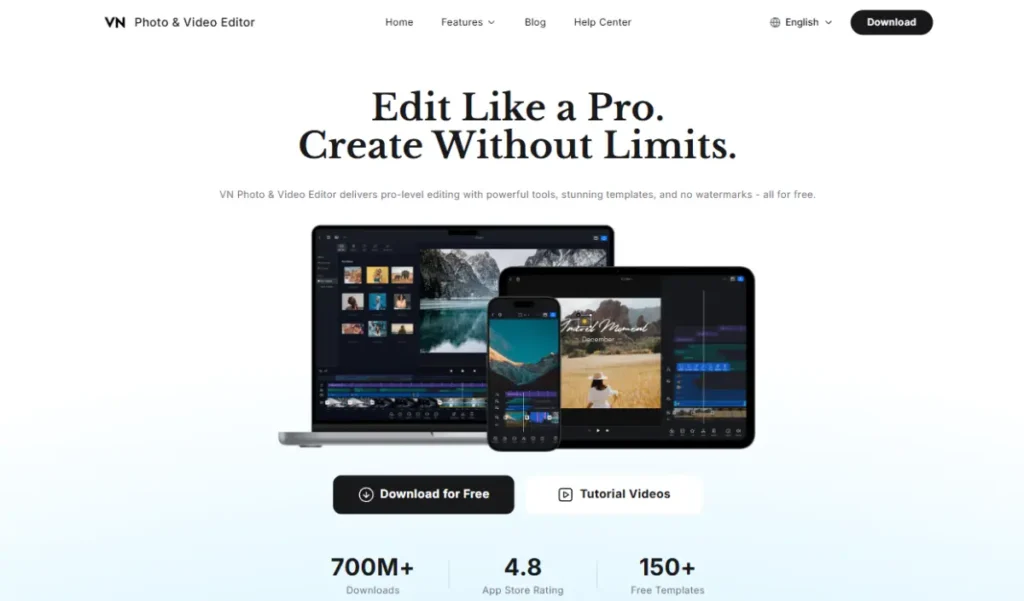
The editing interface includes a full multi-layer timeline with video, audio, text, and effects tracks. Transitions, speed ramping, keyframe animation, and color adjustment are all available without a paid plan.
For creators who have tried free editing apps and found the watermark or export restrictions too limiting, VN removes both barriers entirely.
The trade-off is that VN does not have TikTok-native integrations. There are no trending sounds pulled from the platform, no template library tied to viral formats, and no direct TikTok publish flow. You edit, export, and post manually.
For creators who want to drive traffic from TikTok content back to a destination page, the make TikTok video guide covers the production steps from filming to publishing, including how to structure the call to action in the final seconds of a short-form clip.
VN is also available on iPad and desktop (macOS and Windows), which makes it practical for creators who edit on multiple devices without paying for cross-device sync.
Key features:
- Multi-layer timeline with video, audio, text, sticker, and effects tracks
- Speed ramping and curve-based speed control for smooth slow-motion effects
- Keyframe animation for text, stickers, and clip position
- Color grading with LUT import support
- No watermark, no export limits, no subscription at any tier
- Available on iOS, Android, macOS, and Windows
Pros:
- Fully free at every tier with no watermark, no export cap, and no subscription required
- Multi-layer timeline with keyframe support rivals paid apps in the same mobile category
- Cross-platform availability means the same project works on phone and desktop
Cons:
- No TikTok-native features: no trending sounds, no template library, no direct publish integration
- AI-assisted features are limited compared to CapCut, InVideo, and Kapwing
Not for: Creators whose primary workflow depends on TikTok trends and viral templates, where CapCut’s native platform access provides an advantage VN cannot match.
Why we included this: VN earns its position because it removes every barrier that makes free editing apps frustrating: watermarks, export limits, and usage caps. For creators who want full control over the editing process without any subscription, it is the strongest free option available.
Pricing: Free. No paid tier.
3. InVideo AI
Best for: Marketers and creators who need to produce high volumes of short-form video from text scripts, briefs, or prompts without manual clip editing
InVideo AI generates video from a text prompt or script. You describe what you want (a 30-second video explaining your product’s main benefit, a news-style explainer on a trending topic, a social clip based on a blog post) and the AI selects stock footage, assembles a timeline, adds voiceover, and syncs captions. It sits in the same category as AI UGC video creation tools that have emerged specifically for social content production at scale.
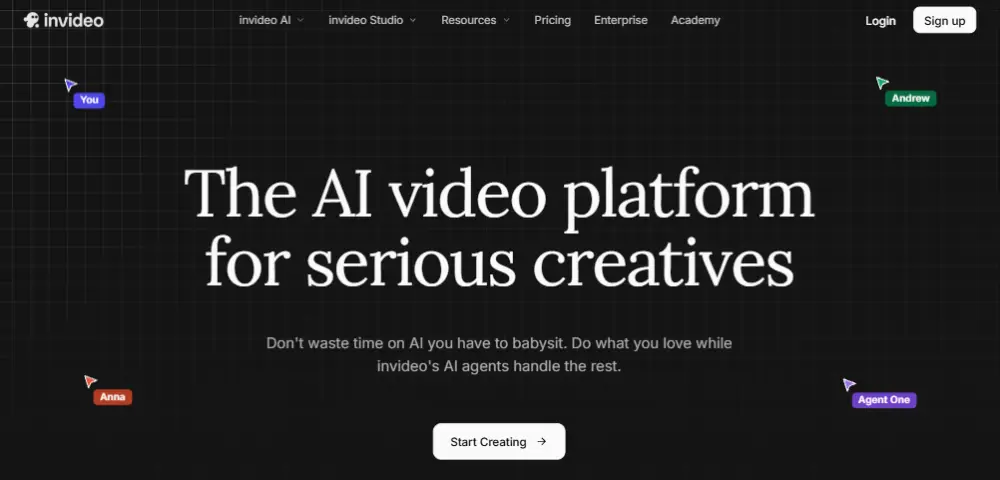
The output is not a cinematic production. It is a publishable short-form video that covers the brief, includes relevant visuals, and takes five minutes to generate rather than two hours to edit. For creators publishing informational or educational content at high frequency, that production speed is the point.
InVideo AI’s 2026 version includes a voice cloning feature that lets creators record their own voice once and generate voiceover in that voice for future videos without recording again. For marketers producing weekly content series, that feature alone eliminates a significant production step.
The free plan exports with an InVideo watermark, which makes it unsuitable for publishing. The $20/month paid plan removes the watermark and increases the monthly video generation limit.
Key features:
- Text-to-video generation from a prompt, script, or article URL
- AI voice cloning to replicate creator voice across generated videos
- Automatic stock footage selection from iStock and Getty integration
- Auto-captions with style customization on generated video
- AI-powered script writer with TikTok hook structure built in
- Storyboard editing to swap footage or adjust AI-generated sections
Pros:
- Generates a publishable short-form video from a text prompt in under five minutes
- Voice cloning eliminates repeated recording sessions for serial content formats
- Script writer structures output around a hook, content, and call-to-action format suited to short-form platforms
Cons:
- Free plan exports with an InVideo watermark, making it unsuitable for publishing without a subscription
- AI footage selection occasionally mismatches tone or context, requiring manual storyboard review
Not for: Creators whose brand depends on authentic personal presence or original footage, where AI-generated stock video would feel inconsistent with the content style their audience expects.
Why we included this: InVideo AI addresses the production bottleneck that limits most content teams: time per video. For brands and educators who need to publish at scale without a video team, the output quality is sufficient and the production time is a fraction of manual editing.
Pricing: Free plan (watermark). Plus from $20/month.
4. PowerDirector
Best for: Mobile creators who want a desktop-level multi-track editing experience on a phone or tablet without switching to a computer
PowerDirector gives mobile creators access to editing features that most apps reserve for desktop: multi-track timelines with up to 100 tracks, motion graphics, keyframe animation, and AI-powered sky replacement and object removal.
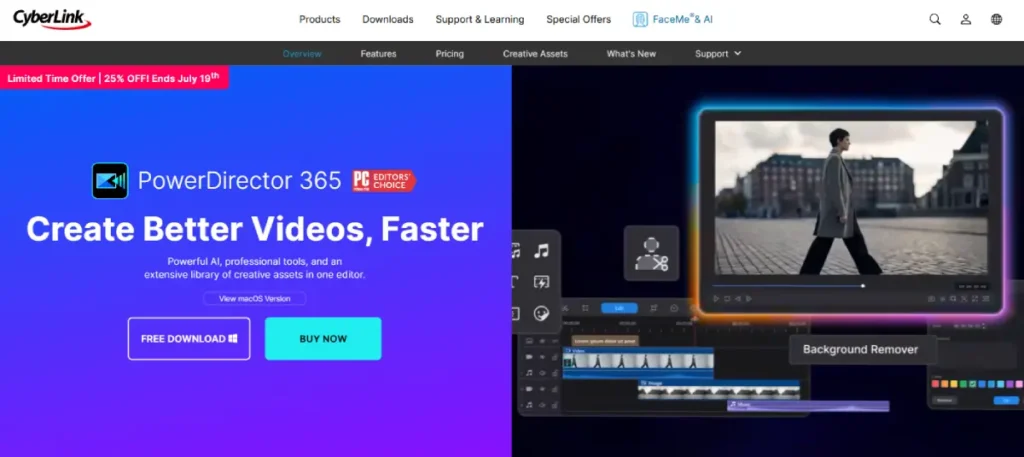
The mobile interface handles these features without the lag that complex mobile timelines often produce. In our testing, timeline scrubbing and export performance on a mid-range Android device were comparable to what desktop editors deliver on equivalent hardware.
For TikTok creators who shoot and edit on their phone but want finer control than CapCut’s simplified interface allows, PowerDirector is the natural step up. You get more tracks, more precise color tools, and more control over transitions and effects without moving to a laptop.
The $4.33/month annual plan is one of the lowest-cost paid options on this list with meaningful feature depth. CyberLink also bundles PowerDirector with its other creative apps at a higher tier, which adds value for creators who also produce graphics or screen recordings.
Key features:
- Multi-track timeline supporting up to 100 video, audio, and overlay tracks on mobile
- AI object removal, sky replacement, and facial enhancement tools
- Keyframe animation for text, stickers, and video track motion
- LUT-based color grading with pre-built color profiles for popular visual styles
- Direct export in TikTok and Reels vertical format with platform-specific presets
- Cloud project sync between mobile and desktop versions
Pros:
- Multi-track depth matches desktop editors while staying on a mobile device and workflow
- AI removal and sky replacement tools solve common mobile footage problems without desktop software
- $4.33/month annual plan is the lowest-cost paid option with professional mobile editing depth
Cons:
- Interface has a steeper learning curve than CapCut or Splice for creators new to multi-track editing
- Some AI features require an internet connection, limiting offline editing capability
Not for: Creators who prioritize speed over control and want to go from raw clip to published post in under 10 minutes, where PowerDirector’s feature depth adds time rather than saving it.
Why we included this: PowerDirector closes the gap between mobile convenience and desktop capability. For creators who have outgrown CapCut’s simplified interface but do not want to edit on a laptop, it offers the most editing depth available on a phone.
Pricing: Free plan available. PowerDirector 365 from $5/month (annual).
5. Kapwing
Best for: Remote content teams that need to collaborate on video editing in a browser without installing software or managing file transfers
Kapwing runs entirely in a browser. No download, no installation, no file compatibility issues between team members on different operating systems. You open a project, your teammate opens the same project, and both of you can work on it without sending files back and forth.
The collaboration model is the primary advantage over other tools on this list. Multiple team members can work on different video projects in the same workspace, comment on each other’s work, and hand off projects at different stages of editing without version confusion.
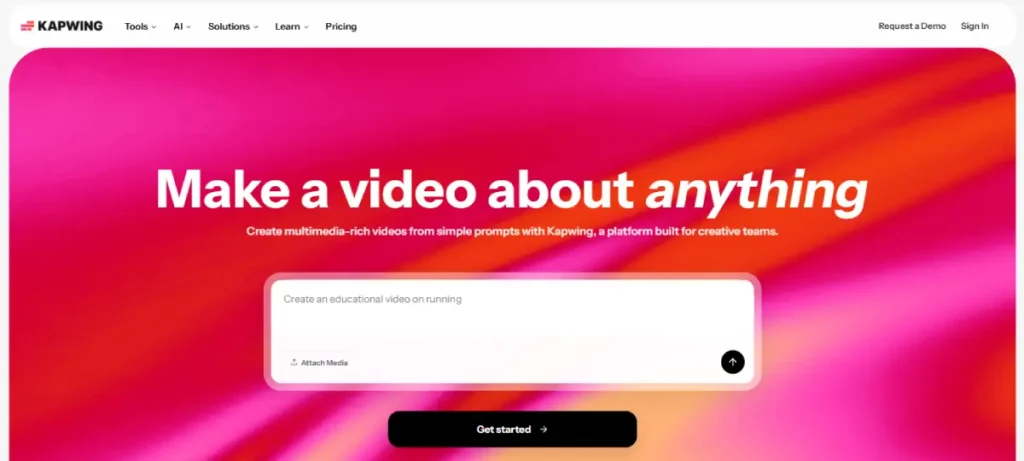
Kapwing’s AI tools in 2026 include auto-subtitle generation, background removal, clip resizing across formats, and a text-to-video generator similar to InVideo. These are browser-based and require no additional tools.
The free plan exports with a Kapwing watermark. The $16/month paid plan removes it and unlocks higher export quality and longer project duration.
For creators who want to understand how video content connects to TikTok trend cycles, the TikTok trends guide covers how to identify what is gaining traction before spending time editing.
Key features:
- Browser-based video editor with no download or installation required
- Real-time team collaboration with comments and project sharing
- AI auto-subtitle generation and background removal
- Resize tool for reformatting video across TikTok, Reels, YouTube Shorts, and LinkedIn
- Text-to-video generator for content teams producing high volumes
- Shared workspace with project organization and brand kit storage
Pros:
- Browser-based collaboration eliminates file transfer and version control problems for remote teams
- Resize tool reformats a single video for multiple platforms without re-editing
- AI subtitle generation produces accurate captions faster than manual transcription
Cons:
- Free plan exports include a Kapwing watermark, requiring a paid plan for publishable output
- Browser-based editing is slower than native app editing on hardware with limited internet speed
Not for: Solo creators who edit alone on a fast mobile device, where the browser-based collaboration model adds no value and the $16/month cost buys less editing capability than native apps in the same price range.
Why we included this: Kapwing solves a specific operational problem that no other tool on this list addresses: how do two or three people on different devices collaborate on a video project without emailing files? For content teams, that answer is worth the subscription cost.
Pricing: Free plan (watermark). Pro from $16/month.
6. Splice
Best for: Creators making music-driven content where the edit needs to sync precisely with a beat, drop, or rhythm pattern
Splice is designed for the specific type of TikTok and Reels editing where the visual cuts happen on the beat. The app includes an automatic beat detection feature that identifies rhythm markers in your selected audio track and suggests cut points that align with the music.
For dance videos, product showcases set to trending audio, and lifestyle content timed to music, this feature reduces the time spent manually scrubbing a timeline looking for the right frame to cut on. Splice identifies the beat; you decide whether the suggested cut point fits the visual.
The music library in Splice includes licensed audio cleared for social media use, which removes the risk of a video being muted or removed after publishing due to copyright claims on the original sound.
Videos under 90 seconds achieve a 50% viewer retention rate, according to Vidico, and Splice’s interface is optimized specifically for that format. The editing tools are minimal by design (trim, cut, transition, and audio sync) which keeps the workflow fast for high-frequency publishers.
Key features:
- Beat detection that identifies rhythm markers in audio for automatic cut point suggestions
- Licensed music library cleared for commercial social media use
- Trim, cut, speed, and transition controls optimized for short-form vertical video
- Text and sticker overlays with timing controls
- Export in vertical format with TikTok and Reels dimensions
- Slow-motion and speed effects for rhythm-based visual sequences
Pros:
- Beat-synced cut suggestions eliminate the most time-consuming step in music-driven short-form editing
- Licensed music library removes copyright risk on published content
- Minimal interface stays fast for creators publishing multiple videos per day
Cons:
- Free plan exports with a watermark, requiring the $9.99/month plan for clean output
- Limited multi-track support compared to PowerDirector or DaVinci Resolve for complex projects
Not for: Creators making talking-head, tutorial, or dialogue-driven content where audio-visual beat sync is irrelevant and Splice’s music-first design adds no value to the workflow.
Why we included this: Splice solves beat-synced editing in a way that no other mobile app on this list does efficiently. For creators whose content style depends on cuts landing on the music, the beat detection feature alone justifies the $9.99/month cost.
Pricing: Free plan (watermark). Premium from $9.99/month.
7. DaVinci Resolve
Best for: Creators and brands who want professional desktop color grading and broadcast-quality production tools at no cost
DaVinci Resolve’s free version is the most capable free video editor available on any platform. It includes the same color grading tools used in commercial film and television post-production, a full audio mixing suite (Fairlight), visual effects compositing (Fusion), and a multi-track editing timeline with no feature limits on the free tier.
The Studio version, which costs $295 as a one-time purchase, adds AI-powered noise reduction, certain collaboration features, and GPU acceleration support. But for most TikTok content production, the free version covers everything needed.
The limitation is not features. It is workflow speed. DaVinci Resolve is a desktop application built for deliberate, high-production-value editing.
Importing footage, setting up a project, editing, color grading, and exporting take longer than a mobile workflow, even for a 30-second video.
For creators publishing once per week with a focus on visual quality, that time investment is acceptable. For daily publishers, it is not.
For brands producing TikTok content at higher production values and looking to track how that content performs after publishing, the organic TikTok strategy guide covers the publishing and performance measurement side of the workflow.
Key features:
- Professional color grading with full color science, LUT support, and HDR tools on the free tier
- Fairlight audio mixer for multi-track audio editing and mastering
- Fusion visual effects compositing for motion graphics and visual effects
- Multi-track timeline with unlimited tracks on the free version
- DaVinci Neural Engine for AI-powered color matching and noise reduction (Studio only)
- Available on macOS, Windows, and Linux
Pros:
- Free version includes full professional color grading tools with no feature limit or watermark
- One-time $295 Studio purchase eliminates ongoing subscription cost for long-term professional use
- Fairlight audio suite eliminates the need for separate audio post-production software
Cons:
- Desktop-only workflow is incompatible with mobile-first publishing speed requirements
- Steep learning curve; new users typically spend significant time learning before producing efficiently
Not for: Mobile-first creators who publish daily or more frequently, where DaVinci Resolve’s desktop workflow creates a production bottleneck rather than solving one.
Why we included this: DaVinci Resolve belongs on this list because it resets expectations about what free means in video editing. Any creator or brand investing time in higher production quality should know that broadcast-level color tools cost nothing in 2026.
Pricing: Free (full feature set). Studio from $295 one-time.
8. Adobe Premiere Pro
Best for: Creators already in the Adobe ecosystem who want a professional desktop editor and can pair it with the free Premiere on iPhone app to move phone rough-cuts into the desktop timeline
Adobe Premiere Pro is Adobe’s professional video editing application for Mac and Windows, and the desktop anchor of Adobe’s video workflow now that Premiere Rush has been retired.
A project started in the free Premiere on iPhone app opens directly in Premiere Pro on the desktop, so creators can rough-cut on their phone and finish on a desktop without rebuilding the timeline.
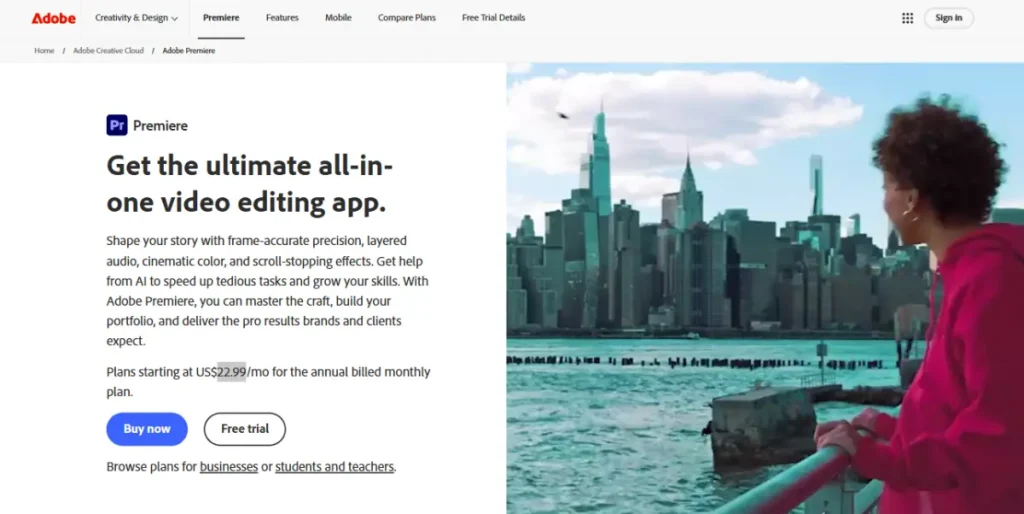
For creators who use Adobe Creative Cloud for design work and edit video as part of a broader production process, Premiere Pro handles the full edit, from capture and rough-cut on mobile through color, audio, and final delivery on the desktop.
The single-app Adobe Premiere Pro subscription starts around $22.99/month on the annual plan (billed monthly), with month-to-month running higher.
Creative Cloud All Apps subscribers get Premiere Pro included as part of the bundle at no additional cost, and the Premiere on iPhone companion app is free.
For short-form video creation specifically, Premiere Pro does not have TikTok-native features comparable to CapCut, and the interface is far more structured and complex than Splice or VN.
The primary value is professional editing depth combined with a free mobile-to-desktop bridge, not a fast, casual mobile editing experience in isolation.
For creators running paid campaigns with their TikTok content, the TikTok ad creative best practices guide covers how editing choices affect ad performance.
Key features:
- Mobile-to-desktop handoff: projects from the free Premiere on iPhone app open directly in Premiere Pro
- Multi-track timeline with advanced audio mixing via the Essential Sound panel and separate dialogue, music, and effects handling
- Lumetri Color panel with auto-color tools and full manual color grading
- Motion graphics and title templates through Essential Graphics, compatible with Adobe Stock
- Text-Based Editing and Speech-to-Text for transcription and captions
- Social export presets for vertical formats including TikTok, Reels, and YouTube Shorts
- Included in all Adobe Creative Cloud All Apps plans
Pros:
- Professional editing depth (multicam, color grading, audio mixing) well beyond any mobile-first app
- The free Premiere on iPhone companion lets you rough-cut on your phone and finish in Premiere Pro without rebuilding the timeline
- Creative Cloud All Apps subscribers get Premiere Pro at no additional cost as part of their existing subscription
Cons:
- No TikTok-native features like trending sounds or platform templates
- Steep learning curve and higher hardware requirements make it overkill for simple short-form edits
- Adobe subscription requirement and higher price point make it expensive for creators not already in the ecosystem
Not for: Creators who only need quick mobile short-form edits and do not use any other Adobe products, where Premiere Pro’s professional depth goes unused and it costs more than VN, CapCut, the free Premiere on iPhone, or Splice for equivalent short-form editing.
Why we included this: For the large segment of creators and marketers already paying for Adobe Creative Cloud, Premiere Pro is the professional finishing tool, and with the free Premiere on iPhone app it now covers the mobile rough-cut step that Rush used to fill. Excluding it from a serious list because of its ecosystem requirement would leave a real use case uncovered.
Pricing: No permanent free plan (7-day trial). Single-app from about $22.99/month on the annual plan (billed monthly); month-to-month is higher. Included in Creative Cloud All Apps plans. Free Premiere on iPhone companion app.
9. Canva Video
Best for: Creators and brands that produce design-heavy video content where visual branding, text animations, and template consistency matter more than raw video editing depth
Canva’s video editor extends Canva’s design-first approach into short-form video. If your TikTok or Reels content relies heavily on branded graphics, animated text, product photography with motion, or template-consistent visual identity, Canva handles those elements faster than any dedicated video editor on this list.

The template library includes hundreds of pre-built short-form video formats that maintain consistent branding across multiple posts. A social media manager producing ten product announcement videos per week can work from a single template, swap the product image and copy, and export each video in the vertical format TikTok requires.
The tradeoff is that Canva’s video editing tools are lighter than dedicated editors. Timeline control is basic, multi-track audio is limited, and advanced effects require workarounds.
For footage-heavy content, Canva is not the right tool. For graphic-heavy content, it outperforms every other app on this list on production speed.
Connecting Canva-produced content to TikTok campaign tracking requires linking your bio link and tagging posts correctly. The 3-second hook guide covers the opening frame strategy that applies to branded template content as much as filmed video.
If you’re deciding between CapCut and Canva specifically, our CapCut vs Canva comparison covers the differences in editing features, templates, pricing, and workflow.
Key features:
- Short-form video template library with branded format presets
- Brand kit integration that applies your colors, fonts, and logo to any template
- Animated text and element transitions with one-click application
- Stock video and image library with motion-enabled assets
- Background remover and image upscaler built into the design workflow
- Direct publish to TikTok, Instagram, and LinkedIn from Canva
Pros:
- Template-based production lets design teams create consistent branded video content without per-video creative decisions
- Brand kit automation applies visual identity across every video without manual formatting
- Direct publish to TikTok eliminates the export-and-upload step in the publishing workflow
Cons:
- Video timeline and multi-track audio tools are too limited for footage-heavy or effects-driven content
- Free plan limits access to premium templates and the brand kit features that make Canva Video most effective
Not for: Creators whose content is primarily filmed footage, talking-head video, or effects-driven editing, where Canva’s design-first approach limits what the editor can actually do with the raw material.
Why we included this: Canva Video solves the branded content production problem that no dedicated video editor addresses well: how do you produce ten consistent branded videos per week without a designer making each one from scratch? For brands with a strong visual identity, that answer is more valuable than a deeper timeline.
Pricing: Free plan available. Canva Pro from $18/month.
Tool Ratings at a Glance
After testing all 9 apps, here is how they compare across the criteria that matter most for TikTok and Reels creators.
Scale: 5 = Excellent, 4 = Good, 3 = Fair, 2 = Limited.
| App | Publishing Speed | TikTok-Native Features | Free Tier Value | Production Depth |
|---|---|---|---|---|
| CapCut | 5 | 5 | 4 | 3 |
| VN Video Editor | 4 | 2 | 5 | 3 |
| InVideo AI | 5 | 3 | 2 | 2 |
| PowerDirector | 3 | 3 | 3 | 5 |
| Kapwing | 3 | 3 | 2 | 3 |
| Splice | 5 | 3 | 2 | 2 |
| DaVinci Resolve | 1 | 1 | 5 | 5 |
| Adobe Premiere Pro | 2 | 3 | 1 | 5 |
| Canva Video | 5 | 3 | 3 | 2 |
Publishing Speed: How quickly you can go from raw footage to a published post. TikTok-Native Features: Platform-specific integrations like trending sounds, templates, and direct publish. Free Tier Value: Capability available without a subscription or watermark. Production Depth: Multi-track editing, color tools, and effects available.
Which Video Editing App Fits Your Situation?
| You are a… | Start with… |
|---|---|
| TikTok creator who publishes daily | CapCut |
| Creator who wants fully free editing with no watermark | VN Video Editor |
| Brand producing high-volume text-to-video content | InVideo AI |
| Mobile creator who wants desktop-level timeline control | PowerDirector |
| Remote team collaborating on video projects | Kapwing |
| Creator making music-synced or dance content | Splice |
| Brand investing in higher production quality on desktop | DaVinci Resolve |
| Adobe Creative Cloud subscriber | Adobe Premiere Pro |
| Brand producing design-heavy branded video content | Canva Video |
The editing app you use shapes how often you can publish. The best time to post on TikTok guide covers when to publish once your editing workflow is fast enough to give you a real choice. For ideas on what to create with whichever app you choose, the TikTok video ideas guide covers formats organized by goal and audience type.
FAQ
Choosing a video editing app for TikTok raises questions that go beyond comparing feature lists. The answers below address what actually matters for short-form publishing.
Is CapCut safe to use for professional or client content in 2026?
CapCut is safe for personal content and organic creator videos. The terms-of-service update is specifically relevant when using CapCut templates for branded or client content, because the terms grant ByteDance a license to use that content for platform training purposes.
For client campaigns, branded content, or any situation where the content rights matter contractually, review the current CapCut terms before publishing from templates. Editing with CapCut’s timeline without using templates is not subject to the same license language.
What is the best free video editing app for TikTok with no watermark?
VN Video Editor is the best free video editing app with no watermark and no export restrictions at any level.
CapCut’s free plan also exports without a watermark for standard video, though some effects and AI features are restricted to paid plans.
DaVinci Resolve is the strongest free option for desktop production without a watermark.
Every other free tier on this list includes a watermark that requires a paid subscription to remove.
How important is publishing speed versus editing quality for TikTok growth?
Publishing frequency matters more than production quality at most stages of TikTok growth. TikTok’s algorithm prioritizes content that generates engagement quickly after posting, and accounts that post consistently build performance data faster than accounts that post rarely.
A video published today will collect performance signals faster than a highly polished video published next week. Quality matters, but it matters within a frequency constraint, not instead of one.
Can I edit TikTok videos on a desktop app instead of my phone?
Yes. DaVinci Resolve, Kapwing (browser-based), Adobe Premiere pro, and Canva Video all support desktop editing for TikTok content.
DaVinci Resolve offers the most editing depth at no cost. Kapwing requires no installation and works in any browser.
The trade-off with desktop editing for TikTok is publishing speed: mobile editing lets you go from raw clip to published post faster because the footage is already on your phone.
What video format and length works best for TikTok in 2026?
TikTok’s current best-performing format is vertical video at 9:16 aspect ratio, under 90 seconds, with captions. Videos under 90 seconds achieve a 50% viewer retention rate, according to Vidico. Videos under two minutes represent 56% of business video content.
For TikTok specifically, the first three seconds determine whether the viewer stays or scrolls, which means the hook matters more than total length.
Wrapping Up
The editing app that makes you publish more often is the right one, regardless of its feature list.
Most creators improve faster by publishing five videos per week with an adequate tool than by publishing one video per week with a professional one. The frequency creates the feedback loop that actually builds a content instinct.
Pick the app that fits your current publishing pace. Add production depth only when that depth serves a specific goal your current workflow cannot reach.
Sources
- Vidico, Short-Form Video Statistics
- CapCut, Terms of Service Update
- AI-Generated Video Statistics
- Social Media Marketing Statistics