
TikTok Video Title Generator
Describe your video, pick an audience and a tone, and get 3, 5 or 10 short title lines for your on-screen text, each with a character count and a Copy button.
Grow your Business & Social Media Marketing
- Branded Link Shortener
- QR Code Generator
- Bio Page Builder
- Tracking & Analytics
- 16+ Integrations
More TikTok Tools for Your Next Video
What the TikTok video title generator gives you
The TikTok Video Title Generator writes short title lines for the text you put on your video. Describe the clip, name the audience, pick a tone, and you get 3, 5 or 10 options, each with its own Copy button. It doesn’t edit video, place text on a clip or read a TikTok link, so you paste the line into TikTok yourself.
On this page, a title means on-screen text: the line a viewer reads over the first frame. Your caption is the separate description under the video, and this tool doesn’t write it.
Five inputs and what each one changes
Five inputs shape the titles, and the first two matter most:
- Video Concept / Topic. Say what the video shows in one sentence. “How we pack a 3-day backpacking kit under 15 pounds for Colorado trails” gives the tool real details to work with. “Hiking video” doesn’t.
- Target Audience. Name who’s watching, such as beginner backpackers or busy parents. In our test, the one-line strategy note above the results named this audience.
- Select Tone. Choose Trendy (the default), Curiosity Gap, Controversial, Educational or Funny.
- Keywords (Optional). Add words you’d like to see. Treat them as hints: in our test the tool used the idea behind them but not the phrase itself.
- Count. Pick 3, 5 or 10 titles. Five is selected when the page loads.
Click Generate Titles. Each result shows a style label, a score out of 100, a character count and a Copy button. Clear empties the form for the next video.
Our test: five titles for a backpacking video
In our test on November 3, 2026, the generator returned five titles in 5.6 seconds. We wrote the inputs for a made-up Colorado gear brand: the topic above, “Beginner backpackers” as the audience, the Curiosity Gap tone and the keywords “ultralight, packing list.”
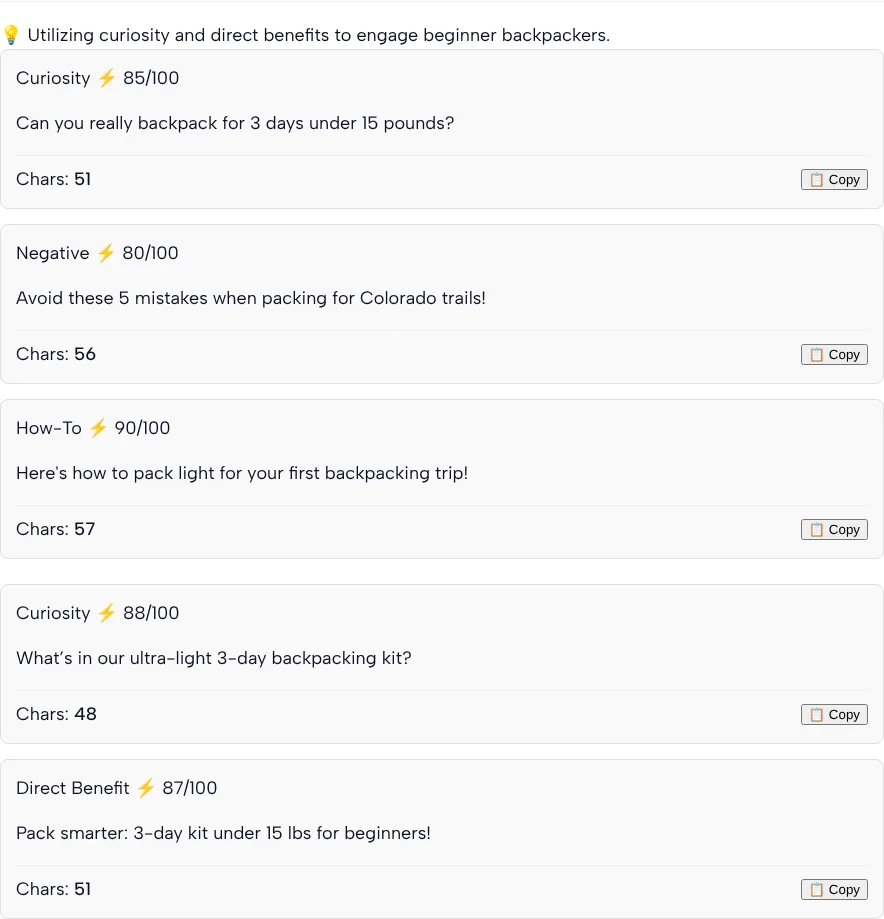
Above the list, the tool added a one-line plan: “Utilizing curiosity and direct benefits to engage beginner backpackers.” These are the five titles word for word:
| Title | Style label | Score | Characters |
|---|---|---|---|
| Can you really backpack for 3 days under 15 pounds? | Curiosity | 85/100 | 51 |
| Avoid these 5 mistakes when packing for Colorado trails! | Negative | 80/100 | 56 |
| Here’s how to pack light for your first backpacking trip! | How-To | 90/100 | 57 |
| What’s in our ultra-light 3-day backpacking kit? | Curiosity | 88/100 | 48 |
| Pack smarter: 3-day kit under 15 lbs for beginners! | Direct Benefit | 87/100 | 51 |
What stood out when we read them:
- The scores are the AI grading itself. Nothing was measured. A 90 doesn’t mean that title will get more views than an 80, so pick the line that fits your video, not the highest number.
- The character counts are right. We counted all five by hand and each one matched.
- The tone setting mixes styles. We chose Curiosity Gap, yet only two of the five carry the Curiosity label. The others came back as Negative, How-To and Direct Benefit.
- Keywords were loosely used. “Ultra-light” shows up once, and “packing list” never appears as written.
- Copy works. Clicking Copy on the first title changed the button to “Copied!” and put that title on our clipboard.
- One row isn’t a title. A promo line for TLinky’s TikTok ad credit sits between the third and fourth result. Skip it when you copy.
Putting the title on your TikTok
You add the title as text in TikTok’s own editor, after you’ve picked and trimmed it here. TikTok Support’s guide to editing videos and photos lists the steps: tap Text on the editing screen, enter your words, then drag the arrows on the text below the video track to set how long it stays on screen.
You can have the same line read aloud, too. The TikTok accessibility help page says you tap the text you added and select Text-to-speech. To hear a line before you record anything, the TikTok AI voice generator on TLinky reads text with the voices built into your browser.
Don’t put everything into the on-screen line, though. TikTok’s newsroom post on For You recommendations names video information such as captions, sounds and hashtags among the factors it uses, and it doesn’t mention on-screen text. Write the words people search for into your caption as well, and get tags from the TikTok hashtag generator.
Edit the line before it goes on screen
A generated title is a starting point. These edits turned two of our test titles into lines we’d post:
| Generated | Our edit | Why |
|---|---|---|
| Can you really backpack for 3 days under 15 pounds? | 3 days on the trail. Under 15 pounds. | Shorter, so it reads in one glance over the opening shot |
| Avoid these 5 mistakes when packing for Colorado trails! | The 5 packing mistakes we made on our first Colorado trip | Our topic never mentioned mistakes, so the video has to show five of them for this title to be honest |
A few more rules of thumb:
- Cut the exclamation marks. Three of our five titles ended with one. On-screen text reads calmer without them.
- Promise only what the clip shows. If the title says “5 mistakes,” count them in the video.
- Add the detail only you know. Only one of our five titles named Colorado, the detail that set our video apart. Name your product or place if it’s in the shot.
- Watch the character count. Ours ran from 48 to 57 characters, which is a lot of text over a vertical video. Shorter usually fits better.
Picking a tone
Pick the tone by what the video does, not by what sounds clever. We only tested Curiosity Gap, so the notes below describe what each option is for, not how its output reads:
| Tone (as the form lists it) | Good fit for | Watch for |
|---|---|---|
| Trendy (default) | Light, everyday clips | Lines that could sit on anyone’s video |
| Curiosity Gap | Reveals, before-and-after, “what’s inside” videos | A question your video doesn’t answer |
| Controversial | Opinions you’ll defend in the comments | Picking a fight your brand doesn’t want |
| Educational | Tutorials, how-tos, explainers | Titles that sound like a textbook |
| Funny | Skits and behind-the-scenes moments | Jokes that only work with the audio |
Who gets the most out of it
Anyone who films faster than they can name the videos gets the most out of it:
- Small brands making product how-tos. Describe the demo and the buyer, then edit the best line into your brand’s voice.
- Creators batching a week of posts. Run each topic once, keep two or three lines per video and decide on the day you post.
- People posting the same clip to Reels or Shorts. The titles are plain text, so they paste anywhere, but the tool doesn’t know each app’s layout. Check where the line lands on screen.
Want a rough sense of how a video might do before you post? The TikTok engagement predictor gives an AI estimate from your follower count and a few details. You’ll find the rest of TLinky’s free creator tools on the TikTok tools page.
TikTok video title generator FAQ
Does the TikTok video title generator put text on my video?
No. It writes title lines and nothing else. It doesn’t edit video, read a TikTok link or make an image. Copy the line you like and add it with the Text tool in TikTok’s editor.
What does the score out of 100 mean?
The score is the AI’s own rating of each title it wrote. Nothing is measured against real TikTok results, so the score doesn’t predict views. In our test the five titles scored between 80 and 90, and we’d pick by fit with the video, not by the number.
Is an on-screen title the same as a TikTok caption?
No. The title is text you place over the video, so viewers read it while it plays. The caption is the description you type when you post. This tool writes the first one; write the caption yourself and keep the searchable words there.
Why didn’t my keywords show up in the titles?
The keywords field works as a hint, not a rule. In our test we entered “ultralight, packing list” and got “ultra-light” in one title and “packing list” in none. If a word must appear, add it when you edit the line.
Can I use these titles on Instagram Reels or YouTube Shorts?
Yes. The output is plain text, so you can paste it into any editor. The tool doesn’t adjust for each app’s screen layout, so check that the line isn’t hidden behind buttons or captions.
Do I need to sign up to use it?
No. There’s nothing to sign up for: fill in the topic, audience, tone, optional keywords and count, then click Generate Titles.