
LinkedIn Summary Generator
The LinkedIn Summary Generator turns your role and 3 to 5 career highlights into free About section drafts you can copy, edit and paste into your profile.
Grow your Business & Social Media Marketing
- Branded Link Shortener
- QR Code Generator
- Bio Page Builder
- Tracking & Analytics
- 16+ Integrations
Tools You May Need for LinkedIn Profile Writing
What the LinkedIn Summary Generator writes
The LinkedIn Summary Generator drafts your LinkedIn About section, the professional summary near the top of your profile. You enter your role and a few career highlights, choose a tone and a goal, and it returns one or more versions to pick from, each with a Copy button.
Job seekers, freelancers, managers and career changers get the most from it: people who have the facts but can’t settle on how to present them. It costs nothing and asks for no account. It also never sees your LinkedIn profile, so the summary can only contain what you type into the form.
How to fill in the form
The form has two required text fields and three dropdowns. Fill them in, then click Generate Summary.
- Current or Target Role. Your job title, or the role you want next if you’re changing careers, for example “B2B SaaS Marketing Manager”.
- Key Experience, Achievements & Skills. The form asks for 3 to 5 key points. Put numbers in them where you can. The drafts reuse what you write here, so thin input gives thin output.
- Desired Tone. Professional & Direct, Visionary & Forward-Looking, Relatable & Storytelling, or Technical & Detail-Oriented.
- Primary Career Goal. Establish Thought Leadership, Active Job Search (Attract Recruiters), Attract Sales/Client Leads, or General Professional Networking.
- Number of Options. Choose 1, 3 or 5 versions. This setting didn’t hold in our test: we asked for one version and got two on the first run and three on the second. Expect at least one version, possibly more.
The Clear button wipes the fields if you want to start over with a different role.
What we got in our test
For our test on November 2, 2026, we entered the profile of a B2B SaaS marketing manager with six years of experience. The key points in our test: marketing-sourced pipeline grown from $1.2M to $3.6M in two years, a webinar program that produced 900 MQLs in one year, a team of 3, and skills in HubSpot, Salesforce, SEO and LinkedIn Ads. We picked Professional and Job Search. The summaries took about 7 seconds to appear.
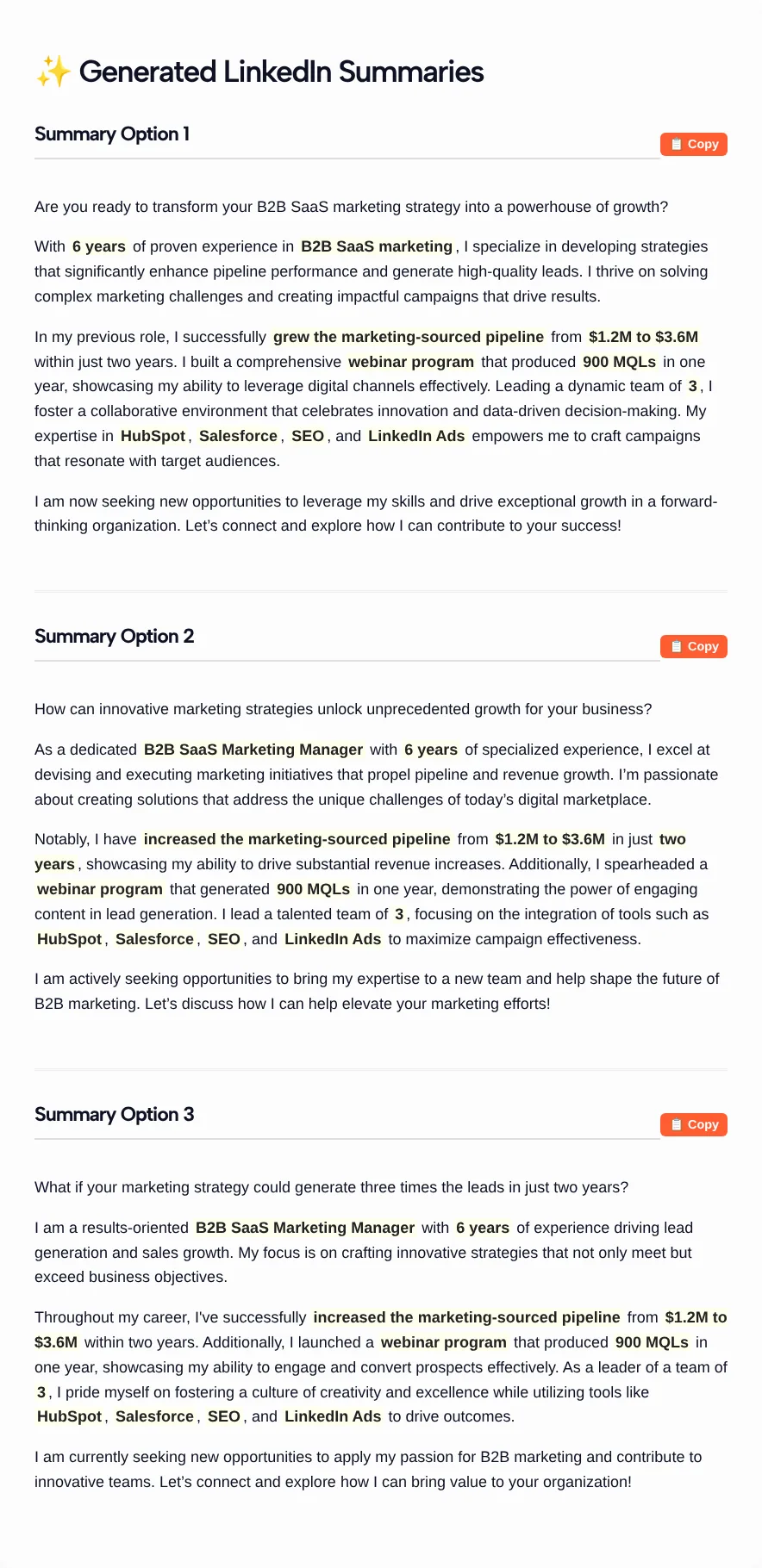
Every version we received used the same four-paragraph pattern:
- An opening question
- Years of experience and the person’s specialty
- The achievements, with the figures from our input
- A line saying the person is open to new roles, plus an invitation to connect
The body paragraphs kept our figures accurate in all three versions. One opening line did not, as the next section shows.
Check and edit before you paste
Compare every version with your own facts before you use it. Our third version opened by asking what a strategy could do with “three times the leads in just two years”, but our input said the pipeline tripled, not the leads. A recruiter who asks about that line in an interview would spot the gap.
- Rewrite the opening. All of our versions opened with a question. LinkedIn’s own advice is that your first words matter most, so skip filler and open with who you help and what you’ve done.
- Trim it down. LinkedIn Help suggests one or two paragraphs for the About section, and the tool writes four. Merge or cut until every paragraph earns its place.
- Replace stock phrases. Lines like “powerhouse of growth” and “results-oriented” could describe anyone. Use plain verbs instead: grew, built, led, cut.
- Add what the tool can’t know. Say who you want to hear from, the kind of role or client you’re after, and how to reach you.
If you turn your achievements into a bulleted list, our LinkedIn text formatter can build the list and bold a key number. Switch its counter to the About section preset to check the length before you paste the text into your profile.
LinkedIn About section character limit
The About section holds up to 2,600 characters, according to LinkedIn’s Talent Blog. The generator has no character counter, but its drafts sit well inside that cap: the three versions from our test ran from 941 to 1,063 characters.
Length only becomes a problem when you add to a draft, such as a list of services or a longer career story, so count again before you save.
Tone and goal for common situations
Pick the tone and goal that match where you are now, then feed the experience box the details that situation needs:
| Your situation | Desired Tone | Primary Career Goal | What to list under Key Experience |
|---|---|---|---|
| Job hunting in your current field | Professional & Direct | Active Job Search | Two or three results with figures, plus your main tools |
| Changing careers | Relatable & Storytelling | Active Job Search | Skills that carry over and why you’re moving; put the new role in the Role field |
| Freelancer or consultant | Professional & Direct | Attract Sales/Client Leads | Who you work with, what you deliver, one client result |
| Founder or executive | Visionary & Forward-Looking | Establish Thought Leadership | The problem your company solves and what you’ve built |
| Engineer or analyst | Technical & Detail-Oriented | General Professional Networking | Your stack, systems you’ve shipped, and their scale |
| Student or recent graduate | Relatable & Storytelling | Active Job Search | Projects, internships and coursework tied to the role |
Once your About section is live, tell your network what you’re looking for. The LinkedIn post generator can draft that announcement from a few sentences.
LinkedIn Summary Generator FAQ
Is the LinkedIn Summary Generator free?
Yes, and there’s nothing to sign up for. Enter your role and highlights, pick a tone and a goal, and the summary versions load on the same page with a Copy button under each heading.
Does the tool read my LinkedIn profile?
No. The generator has no connection to LinkedIn. It works only from the role and experience you type into the form, so any achievement you leave out won’t appear in the summary.
Why did I get more versions than I picked?
The Number of Options setting isn’t always respected right now. In our test we chose one option and received two on the first run and three on the second. Pick the version closest to your voice and ignore the rest.
How long should my LinkedIn About section be?
LinkedIn allows up to 2,600 characters, but LinkedIn Help suggests keeping the section to one or two paragraphs. The drafts in our test had four paragraphs each, so trimming them is usually the right call.
Can I use it for a career change?
Yes. Put the role you’re aiming for in the Current or Target Role field, and list skills from your current work that transfer to it. The draft can only connect your past and your goal if your input does.
Will the summary help recruiters find me?
The generator doesn’t check keywords or run any ATS test. Listing the job titles and skills recruiters search for puts those words in your draft, but no tool can promise more profile views or messages.