
LinkedIn Bio Generator
Write the short bio line that sits under your name on LinkedIn. Enter your role and what you do best, pick a style, and get 1, 3 or 5 options to copy.
Grow your Business & Social Media Marketing
- Branded Link Shortener
- QR Code Generator
- Bio Page Builder
- Tracking & Analytics
- 16+ Integrations
Tools You May Need for LinkedIn Personal Branding
What This LinkedIn Bio Generator Writes
The LinkedIn Bio Generator writes the one-line bio that appears under your name on LinkedIn. LinkedIn calls that line your headline: per LinkedIn Help, it’s the text below your name in the introduction section of your profile, and it’s displayed in search results. Many people call it their LinkedIn bio, so that’s the name this tool uses.
It doesn’t write the longer About section further down your profile. If that’s what you’re after, use the LinkedIn Summary Generator, which drafts full About paragraphs from your role and key achievements.
The bio generator is free and needs no sign-up. You type a few details, and the options show up right on this page.
How to Use the LinkedIn Bio Generator
Fill in two required fields, set two menus, and click Generate Headlines. The button says “headlines” because on LinkedIn the bio line and the headline are the same field.
- Current or Target Role/Title (required). Your job title, or the one you want next. The form suggests examples like Senior UX Designer, Fractional CMO or B2B SaaS Account Executive.
- Core Expertise / Value Proposition (required). A sentence or two on what you do well and what it gets people. Specific input gets you less generic lines.
- Target Audience/Client (optional). Who you work for or want to reach, such as “early-stage fintech founders.”
- Headline Style. One of four styles, explained below.
- Number of Options. 1, 3 or 5 lines per run.
The form needs at least 2 characters in the role field and 5 in the expertise field. If either is too short, you get a warning instead of results. Clear empties the form so you can start over.
Which Style Should You Pick?
Pick the style by what you want people to read first. Here’s what each of the four options puts up front:
| Style | Leads with | Good fit if you |
|---|---|---|
| Value-Driven (default) | The outcome you deliver | freelance, consult or sell, and buyers care about results |
| Keywords-First | Search terms for your field | are job hunting and want recruiter search words early |
| Hybrid-Title | Your role, then your value | want a clear title plus a line on what you deliver |
| Aspiration-Forward | The role you’re moving toward | are changing careers or stepping up a level |
Not sure? Run the same details through two styles and compare the lines side by side. It costs you one extra click.
Example From Our Test
We tested the tool on November 2, 2026 with a B2B SaaS marketing manager profile, asking for 3 options in the Hybrid-Title style. The lines came back in about 5 seconds.
- Role: B2B SaaS Marketing Manager
- Expertise: Building demand generation programs that turn content into qualified pipeline for B2B SaaS teams
- Target audience: Series A to C B2B SaaS companies
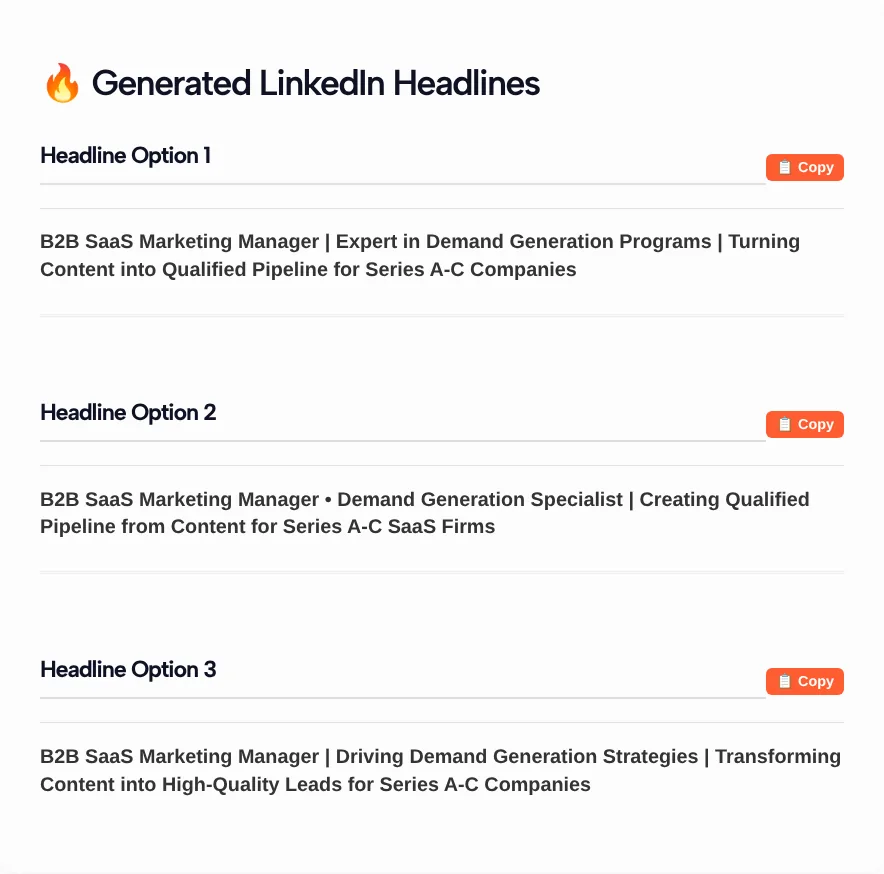
The first option read: B2B SaaS Marketing Manager | Expert in Demand Generation Programs | Turning Content into Qualified Pipeline for Series A-C Companies
All three opened with the job title, split the parts with vertical bars or a bullet, and named the target companies. By our count they ran from 126 to 137 characters.
Each option has its own Copy button. You won’t find a character count, a score or a regenerate button. For a fresh set, change an input or the style and click Generate Headlines again.
Edit the Line So It Sounds Like You
Treat each option as a first draft. A few small edits make it read like you wrote it.
- Swap stock phrases. Openers like “Driving…” or “Expert in…” read like a template. Replace them with plain words for what you do, such as “I run demand gen for SaaS startups.”
- Keep your title and main skill near the start. That’s the part people read first, and it holds the words someone would type to find you.
- Only claim what you can back up. If you add a number or a result, make it one you’d happily explain on a call.
- Count the characters. The tool doesn’t, so paste your final version into a character counter before you save it (the FAQ below covers the limit).
Once the new line is live, you may want to share the change in a post. The LinkedIn text formatter adds bold or italic text and shows where the “see more” cut falls, so you can check the post before you publish it.
Who Uses a LinkedIn Bio Generator
A LinkedIn bio generator suits anyone who wants a clearer line under their name and would rather edit a draft than start from a blank box. Here’s a starting setup for common cases:
- Job seekers: Keywords-First, with your target title in the role field.
- Freelancers and consultants: Value-Driven, with your ideal client in Target Audience.
- Founders: Hybrid-Title, so people see your role and what your company does.
- Career changers: Aspiration-Forward, with the role you want in the title field.
- Students and new grads: Hybrid-Title, with your field of study and strongest skill in the expertise box.
FAQ
Does this tool write my LinkedIn About section?
No. It writes the short headline-style bio line under your name. For the longer About section, use the Summary Generator linked near the top of this page, which writes several paragraphs from your role and achievements.
Will the bio line fit LinkedIn’s character limit?
Most likely, but check before you save. The tool doesn’t count characters or cap the length. The three lines in our test were 126 to 137 characters. LinkedIn doesn’t state the headline limit in its Help Center, so paste the line into the Headline field and check that all of it saved.
Where do I paste the line on LinkedIn?
Per LinkedIn Help: on desktop, click the Me icon at the top of your homepage, click the Edit icon in your introduction section, and paste the line into the Headline field. In the app, tap your profile picture, tap View Profile, then tap the Edit icon in your introduction section.
Can I get more than five options?
Not in one run. The Number of Options menu offers 1, 3 or 5. For more variety, run it again with another style. If you’d like 3 to 10 options with a character count on each, the Headline Generator (linked in the buttons above) does that.
Is the LinkedIn bio generator free?
Yes. There’s no account or sign-up. You fill in the form and the results appear on the page.