
To put a QR code on a flyer, turn the exact page you want people to open into a code and download it as SVG or PNG. Give it a white border and place it on the front of the flyer with a short line that says what the scan gets them. Then print one copy and scan it with an iPhone and an Android phone before you print the rest.
Unlock the Power of QR Codes! with 14+ different types of QR codes!
Elevate your marketing game with TLinky’s QR Code Generator. Create dynamic, eye-catching QR codes in seconds.

What a QR code on a flyer should open
A flyer QR code should open one page that finishes what the flyer started. If the flyer sells a class, the code opens the sign-up form, not your home page.
Some pairings that work on paper:
- An event flyer: the ticket or RSVP page.
- A restaurant or cafe flyer: the menu or the order page.
- A sale or coupon flyer: the offer page with the code already applied, if your shop supports it. Our test code opened a fall-sale page.
- A new location: directions in a maps app.
- A service business: a booking form or a short video of the work.
The page has to load fast on a phone and match the offer on the paper. If someone scans “fall sale” and lands on a generic shop page, most of the work the flyer did is lost.
One more thing: a QR code belongs on paper. On a flyer you post to social media or send by email, people are already on a phone or computer, so put the clickable link there instead.
How to add a QR code to a flyer, step by step
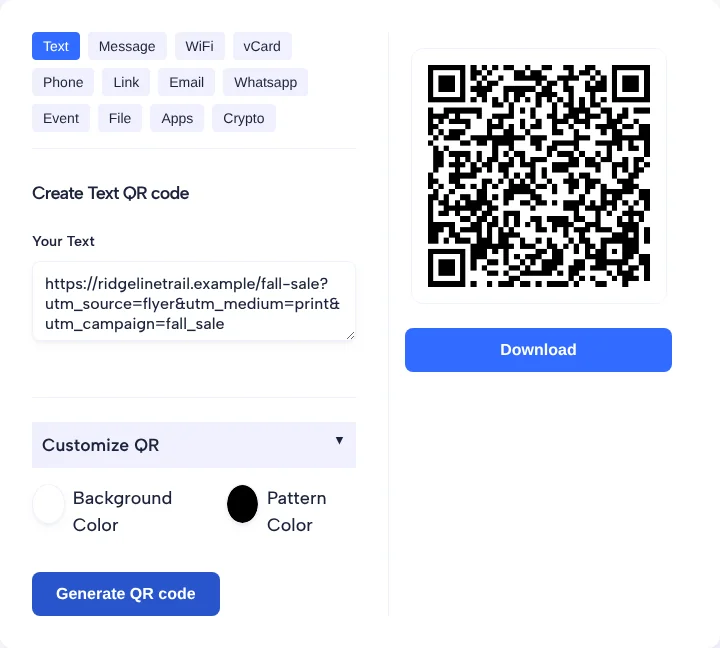
You can make a flyer QR code in the TLinky free QR code generator with the Text tab, then place the file in Canva, Word, InDesign or any layout app as an image. The first four steps are what we did in our test, and they’re the same for any flyer.
- Write the final link, and add campaign tags so you can see flyer visits later (see the tracking section below).
- Open the free QR code generator and stay on the Text tab. Paste the full link.
- Click Generate QR code.
- Click Download and choose SVG, which stays sharp at any print size. PNG works too, but the file is only 256 x 256 px.
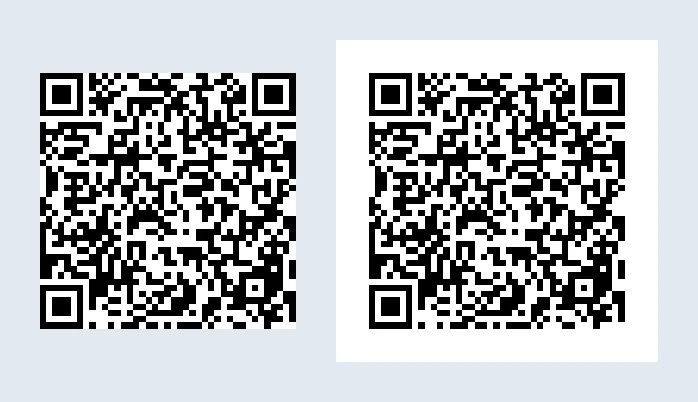
- Add a white margin around the code. The downloaded file has none, and that’s important (next section).
- Place the file in your flyer as an image. Keep it square and never stretch it.
- Scan it on screen with an iPhone and an Android phone, then print one copy and scan the paper.
For the phone test, Apple Support says to open Camera in Photo mode, frame the code and tap the link that appears. Google Pixel Help describes the same flow on Pixel phones, with Camera scan suggestions turned on.
Design and print checks before the print run
Before the print run, check that the flyer code has a blank border, enough size, a dark pattern on a light background and a clear spot on the page. Skip one and some people may not be able to scan it.
Start with the border. Denso Wave, which released the QR code in 1994, says in its guide to QR code size and margin that a QR code needs a quiet zone four modules wide on all sides, where nothing is printed. Our free download has no border at all, and in our test with an image decoder on Nov 4, 2026, the file didn’t decode at any size as downloaded. With a white margin added, it decoded at 256 and 128 px, but not at 76 px.
Then check the rest:
- Size: work it out with Denso Wave’s method (number of modules times module size, plus the margin), then print a test copy at that exact size and scan it from where a reader would stand.
- Colors: keep the code dark and the background light. A light code on a dark panel may look good and still fail.
- Spot: put the code on the front panel, near the offer, on a flat area and not across a fold.
- Light: Google Pixel Help suggests scanning in a well-lit area and avoiding shadows or glare on the code, so think twice about glossy paper for flyers that go on a sunny window.
- Label: add a short action line, such as “Scan to book a class”, and print your web address under the code so people can see where it goes.
How to track scans from a flyer
You can track a flyer in two ways: tag the link inside a free static code and watch visits in your analytics, or use a dynamic code that counts scans. The first is free; the second needs an account.
Google Analytics Help says to always use utm_source, utm_medium and utm_campaign when you add campaign parameters to a URL, and points to its Campaign URL Builder to add them. Our test link used utm_source=flyer, utm_medium=print and utm_campaign=fall_sale, and the decoded code kept all three tags.
A static code counts visits to your page, not scans. If someone scans and closes the page before it loads, your analytics may never see that visit. To compare two places, give each batch of flyers its own utm_source value, for example one for the library board and one for the cafe counter.
A dynamic QR code counts the scans themselves and lets you change the link after printing. In the TLinky generator, the Link tab asks you to sign up for this. The TLinky Free plan covers 5 QR codes and the Starter plan covers 50, as listed on the pricing page.
Worked example: a fall-sale flyer code
Our worked example is a flyer for a made-up outdoor shop, Ridgeline Trail, announcing a fall sale. The shop and its domain (ridgelinetrail.example) are fictional; the code and the test results are real.
- Link: https://ridgelinetrail.example/fall-sale with utm_source=flyer, utm_medium=print and utm_campaign=fall_sale added.
- Code: Text tab of the free generator, default black on white, downloaded as PNG and SVG.
- Border: white margin added around the PNG before testing.
- Result: in our image decoder test on Nov 4, 2026, the code with the margin decoded back to the full link, tags included, at 256 and 128 px. The file as downloaded didn’t decode.
On the printed flyer, we would put the code on the front, bottom right, next to “Scan for the fall sale details”, with ridgelinetrail.example printed under it.
What goes wrong with flyer QR codes
Flyer QR codes usually fail for one of the reasons below, and each one has a simple fix.
- No border: the code runs into the artwork. Add the white margin.
- Light on dark: a white or pale code on a dark background. Flip it to dark on light.
- Too much data: Denso Wave’s versions page explains that codes run from Version 1 (21 x 21 modules) to Version 40 (177 x 177 modules) and more data needs more modules. A long link makes a busy code that needs more room, so trim the link.
- A dead page: the event ends, the page comes down, and every flyer still out there points nowhere. Keep the page live or use a dynamic code.
- Bad spot: across a fold, at the bottom of a poster on the floor, or too small for where people stand.
- No hint: a code with no words next to it. Say what the scan opens.
Unlock the Power of QR Codes! with 14+ different types of QR codes!
Elevate your marketing game with TLinky’s QR Code Generator. Create dynamic, eye-catching QR codes in seconds.
Frequently asked questions
How big should a QR code be on a flyer?
There is no single size that fits every flyer, because it depends on how much the code holds and how far away people stand. Work it out with Denso Wave’s method (modules times module size, plus a four-module margin), keep the link short, then print a test copy and scan it from a normal distance.
What file format should I use to print a QR code on a flyer?
Use SVG when your design app accepts it, because a vector file stays sharp at any print size. The PNG and JPG from the TLinky free generator are 256 x 256 px, which suits a proof or a small code but can look soft when enlarged for print.
Can I change the link after the flyers are printed?
Only with a dynamic QR code. A static code holds the link itself, so a new link means new flyers. A dynamic code holds a short link that you can edit later, so the same printed code can send people to a new page when the event or offer changes.
Can I see how many people scanned my flyer?
A dynamic QR code counts scans directly. With a free static code you can still measure results by adding UTM tags to the link, which show flyer visits in your analytics. Visits aren’t the same as scans, because someone can scan and leave before the page loads.
Do people need an app to scan a QR code on a flyer?
Not on an iPhone or a Pixel phone. Apple Support says iPhone users can scan with the Camera app or Code Scanner and tap the link that appears, and Google Pixel Help says Pixel phones do the same through the Camera app or a Quick Settings scanner. Print your web address under the code as a backup for anyone whose camera doesn’t pick it up.