
TikTok Ad Schedule Optimizer
Type your product, time zone and country, pick a goal and a daily budget band, and the AI suggests three ad windows to test, hours to skip and a bid change for your busiest window.
Grow your Business & Social Media Marketing
- Branded Link Shortener
- QR Code Generator
- Bio Page Builder
- Tracking & Analytics
- 16+ Integrations
Tools You May Also Need for TikTok Ads
Three ad windows to test, written by AI
The TikTok Ad Schedule Optimizer turns five inputs into a short dayparting plan: three time windows with days and reasons, a block of hours to skip and a suggested bid change for prime time. An AI model writes all of it from what you type.
It never sees your ad account, so the windows are educated guesses about when your buyers shop, not hours pulled from TikTok data. Use them as a starting schedule to test against your own results.
The five fields and what each one does
Three fields are required and two are dropdowns that come preset:
- Product or Service Offered. A few words, such as “hand-poured soy candles”. In our test, every reason the AI wrote was built around the product.
- Target Time Zone. A free-text box. Type a short code like EST, PST or GMT.
- Target GEO / Country. Also free text, such as USA or Germany. Enter one market per run.
- Campaign Goal. Conversions (Sales/Leads) is selected by default. The other options are Traffic, Reach and App Installs.
- Daily Ad Budget. If you don’t change it, the form uses Less than $50 (Low/Testing); the other bands are $50 to $200, $200+ and No Budget Cap.
Click Generate Optimal Schedule to get the plan, or Clear to empty the form. The result has two parts: an AI Day-Parting Strategy with a summary, a bid adjustment and a global time exclusion, then three Recommended Prime Ad Windows, each with days, a local time window and the reasoning behind it.
What it suggested for a candle shop
We ran one test on November 4, 2026, as a fictional small Ohio candle brand selling a $28 hand-poured soy candle. For our test we typed “Hand-poured soy candles”, EST and USA, kept Conversions and picked the $50 to $200 budget band. The plan loaded in about 6.4 seconds.
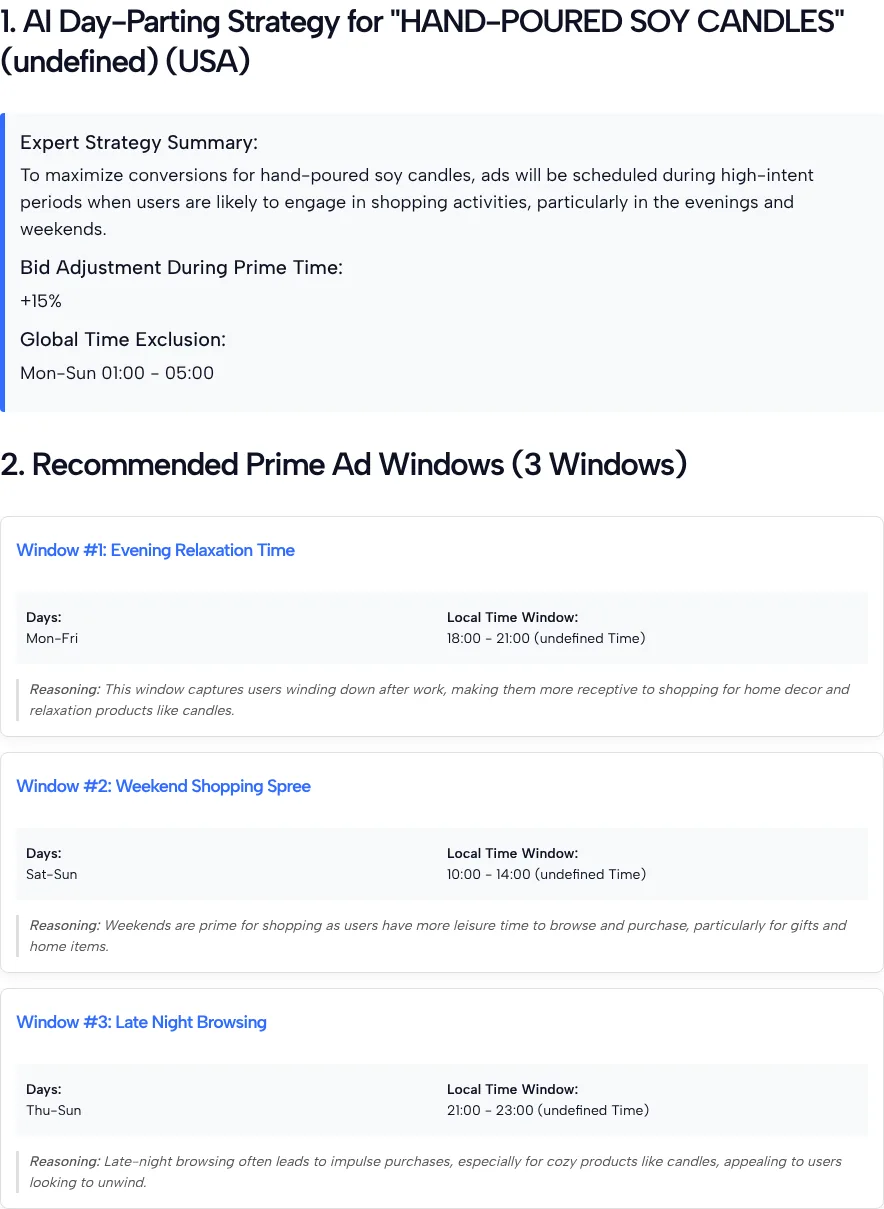
Here’s what came back:
| Window | Days | Hours | The AI’s reason |
|---|---|---|---|
| Evening Relaxation Time | Mon to Fri | 18:00 to 21:00 | People winding down after work |
| Weekend Shopping Spree | Sat and Sun | 10:00 to 14:00 | More free time to browse gifts and home items |
| Late Night Browsing | Thu to Sun | 21:00 to 23:00 | Impulse buys of cozy products |
The tool returned two more settings: a 15% bid increase during prime time and an exclusion from 01:00 to 05:00 every day.
Two things stood out. First, a display bug: we typed EST and the form sent EST, but the heading said “(undefined)” and every window read “undefined Time”. Read the hours as the time zone you entered, and confirm that before you copy them anywhere.
Second, two of the windows join into one longer block. On Thursday and Friday, window one ends at 21:00 just as window three starts, so ads would run from 18:00 to 23:00. Add it all up and the plan covers 31 of the week’s 168 hours. If you only schedule those windows, the 01:00 to 05:00 exclusion is already off, so it adds nothing.
The reasons read like general shopping habits, not findings about candle buyers. That’s fine for a first test, as long as nobody treats them as research.
Setting the hours inside TikTok Ads Manager
Schedules live at the ad group level. TikTok’s guide to checking ad scheduling says Ads Manager lets you schedule ads for your ad groups, and you can review them in the Ad Scheduling column on the Ad Group tab.
Time zones need the most care. TikTok’s time zone help page says you choose the account’s time zone when you create it, you can’t change it afterward, and it controls delivery settings such as start and end times. The Timezone Converter article adds that you can set dayparting in a time zone you pick, and the system converts it to your Business Center account time zone for delivery. So if your account runs on one time zone and your buyers live in another, convert the optimizer’s hours before you save them.
The bid change needs more care. In the TikTok help pages we read for this page, we didn’t find a setting that raises bids by a percentage for certain hours. Treat the +15% from our test as the AI’s idea. If you want to test paying more in the evening, give the evening a separate ad group with its own bid and compare the two.
New to the settings screens? Our TikTok Ads Manager guide walks through where each one lives.
Testing a window before you trust it
A schedule is a guess until your own numbers back it up. Here’s a simple way to check one:
- Keep a control. Leave one ad group running all day and give a second ad group the optimizer’s windows, with the same creative, audience and budget.
- Wait for enough results. TikTok’s learning phase article says volatility starts to decline after about 25 campaign results or 7 days, so give both ad groups at least a week before you compare them.
- Compare cost per result, not clicks. A schedule that lifts click-through rate doesn’t help if each sale ends up costing more. Our guide to TikTok ads metrics explains which numbers to read first.
- Watch the budget band. TikTok’s budget rules require a campaign budget above $50 a day and an ad group daily budget above $20. With only 31 hours a week to spend in, check after the first few days whether the scheduled ad group actually spends what you planned.
If the scheduled ad group wins, try moving one window at a time. If it loses, go back to all-day delivery and run the optimizer again with a different goal or budget band.
What the optimizer can’t see
Keep these limits in mind before you build a client schedule around it:
- No account data. The windows and reasons come from an AI model, not from your past ad results or TikTok’s audience data.
- Time zone bug. In our test, the result printed “undefined” instead of the time zone we typed.
- One country per run. If you sell in several markets, run each one separately.
- General reasons. The explanations describe typical shopping habits, so they won’t match every product.
- One test. We ran it once, so we can’t say how much the windows change if you submit the same inputs again.
Ad Schedule Optimizer FAQ
Why does my schedule say undefined Time?
A display bug on the result card causes it. We typed EST, the form sent EST, and every window still came back labeled undefined. Read the hours in the time zone you entered and check them against your ad account’s time zone before you use them.
Does the optimizer look at my TikTok ad results?
No. The tool has no connection to your ad account, so the windows are an AI model’s guess based on your product, country, goal and budget band. Your own ad group reports are the better guide once you have a week or two of data.
Which time zone does TikTok use when it runs my schedule?
Your ad account’s time zone, which you pick when you create the account and can’t change later, according to TikTok’s time zone help page. Convert the optimizer’s hours if your buyers live somewhere else.
Should I block 1 AM to 5 AM every day?
Only if your reports show those hours cost more per sale. The exclusion is the AI’s suggestion, and if you schedule just the three windows, those hours are switched off anyway.
Can I use the +15% bid adjustment in Ads Manager?
We didn’t find an hourly percentage bid setting in TikTok’s help pages. To test higher bids at busy times, put that window in its own ad group with a higher bid and compare it with your main one.
Will a different goal give me different windows?
Probably, since the goal is one of the inputs, but we only tested Conversions. Run the form once per goal and compare the windows side by side before you change a live campaign.