
CapCut and Canva solve different problems that happen to overlap in one place: short form video. CapCut was built as a video editor and grew AI and design tools around it. Canva was built as a design tool and grew video editing around it.
That order matters more than most comparisons admit. In our testing, the tool that started as a video editor still edits video better, and the tool that started as a design platform still handles brand consistency better. Neither fact changes because a feature list says otherwise.
This comparison is based on producing the same TikTok video in both tools, not a side-by-side feature checklist copied from either company’s marketing page.
In this article, you will learn:
- Where CapCut’s video editing tools are still ahead of Canva, and where that gap has closed
- Where Canva’s design and brand tools do something CapCut cannot replicate
- What each tool actually costs, and what to verify before you subscribe
- Which tool fits TikTok advertisers and Shopify sellers producing content at volume
- Whether using both tools together is worth the extra subscription
Quick Answer
CapCut wins for short form video editing: better auto captions, more precise timeline control, and native TikTok export. Canva wins for brand consistency, resizing one design across platforms, and teams that need shared templates. Most creators who post frequently end up using both: CapCut to edit the video, Canva to design thumbnails, covers, and static posts around it.
What Each Tool Is Actually Built For
CapCut, owned by ByteDance, launched in 2020 as a companion editor to TikTok. Every part of its interface, from the vertical-first canvas to the auto-caption tool, was designed around short form video first.
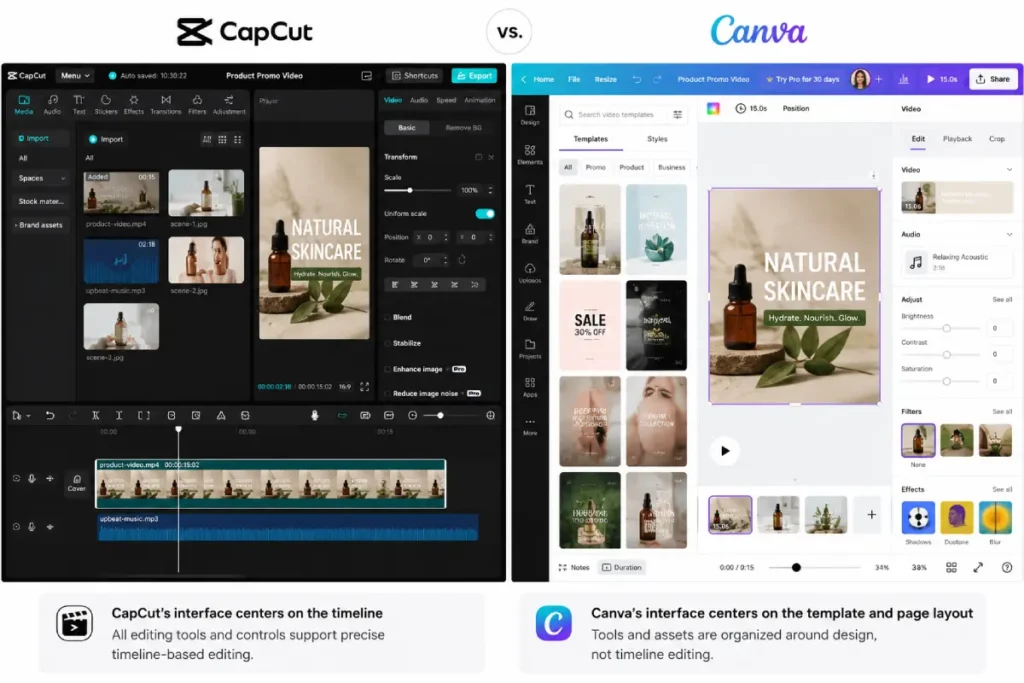
Canva launched in 2013 as a drag and drop design tool for non-designers. Video editing was added later, built on top of the same template and Brand Kit system Canva uses for static graphics, presentations, and print design.
That history shows up directly in how each tool handles a video project.
Video Editing Power: Where CapCut Wins
In our testing, CapCut’s timeline gives you frame level control that Canva does not match. Trimming, speed ramping, and keyframe animation are all faster and more precise in CapCut’s editor.
The auto caption tool is the clearest gap between the two. CapCut’s captions transcribed spoken audio accurately in our tests, including quieter sections, and editing individual caption blocks took a single tap. Canva’s caption tool works, but it required more manual correction in the same test clips.
CapCut also exports directly to a connected TikTok account, removing a step Canva does not offer. If your workflow is record, edit, publish to TikTok, CapCut removes friction Canva adds back in.
Motion tracking, the ability to pin text or a graphic to a moving object in a clip, is available in CapCut Pro and has no equivalent in Canva at any tier. This is a genuine capability gap, not a workflow preference.
CapCut also holds an edge on the opening seconds of a video, which matter more than anything else for retention. Use TLinky’s 3 second hook framework alongside CapCut’s speed and text tools to build an opening that holds attention before the algorithm decides to keep showing your video.
Design and Brand Consistency: Where Canva Wins
Canva’s Brand Kit is the feature CapCut has no real answer for. Once you save your logo, fonts, and color palette, every new design, video included, starts from those brand defaults automatically.
Magic Resize is Canva’s other standout for creators managing multiple platforms. One design resizes to fit TikTok, Instagram Reels, YouTube Shorts, and a static Instagram post without rebuilding it four times. CapCut requires you to set up each export manually.
For teams, Canva’s collaboration tools let multiple people work on the same project and library of brand assets. CapCut’s Pro tier added collaboration features in 2026, but Canva’s version is more mature, since it was built for team workflows from the start.
If your content mixes video with static graphics, carousels, or presentation decks, Canva’s single template system covers all of it. CapCut is a video tool that added some graphic features; Canva is a graphic and video tool built around one shared library.
CapCut AI vs Canva AI Tools Compared
Both platforms added substantial AI toolkits in 2026, but they solve different problems.
CapCut’s Pro tier includes an AI video generator that builds a short clip from a text prompt or reference image, AI avatars for talking presenter videos, and AI image generation. These tools are aimed at producing raw creative from nothing.
Canva’s AI tools lean toward editing and adapting existing content: background removal, Magic Resize, translation, and AI-assisted layout suggestions. Canva is less focused on generating entirely new video from a prompt and more focused on speeding up design decisions within a template.
For a Shopify seller who needs a product demo video generated from a single product link, CapCut’s ecosystem has a more direct answer: Pippit AI, the ByteDance product built specifically for that workflow, connects to Shopify and TikTok Shop directly. Canva does not have an equivalent product-to-video pipeline.
If your priority is scripting the hook and structure before you open either editor, TLinky’s AI ad creative generator works upstream of both tools and does not lock you into either platform’s ecosystem.
Hands On: Making the Same TikTok Video in Both Tools
We built the same 20 second product video in CapCut and Canva to compare the actual workflow, not just the feature list.
In CapCut, importing footage, trimming to length, adding auto captions, and exporting took about 12 minutes. Most of that time went into fine-tuning caption timing and adding a background music track from CapCut’s library.
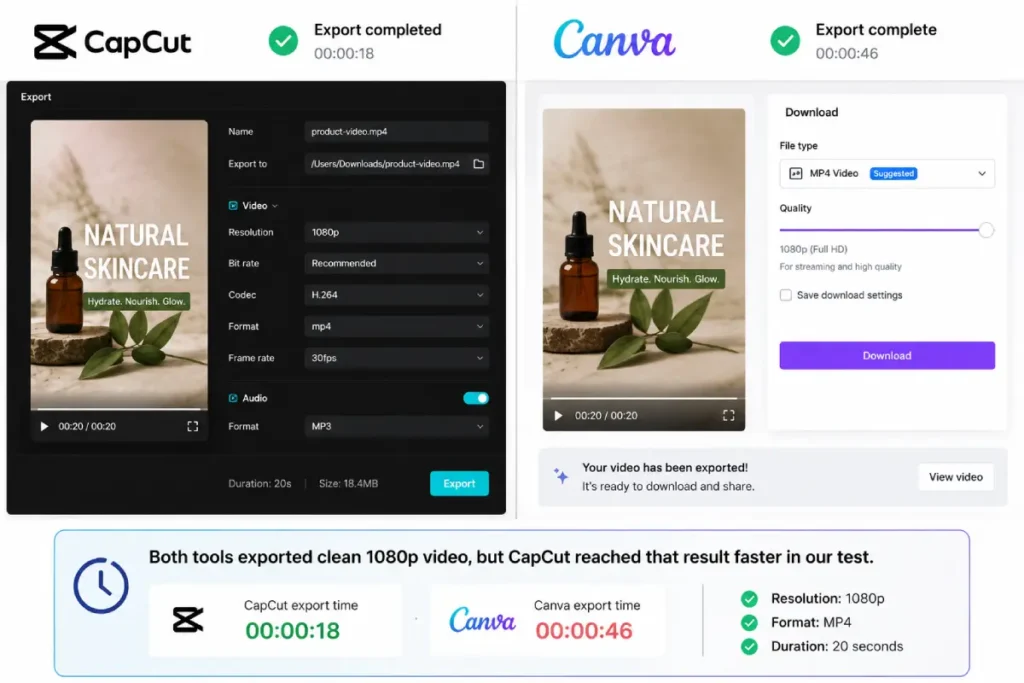
In Canva, the same project took closer to 18 minutes. Canva’s video trimming tools are less precise for frame-accurate cuts, and captions required manual timing adjustments CapCut handled automatically.
Where Canva pulled ahead was the thumbnail and cover image for the video. Using the same Brand Kit that generated the video’s on-brand color scheme, we built a matching static thumbnail in under 3 minutes, something CapCut has no dedicated tool for.
CapCut vs Canva: Pricing
Both tools offer a functional free tier, and both restructured pricing in 2026, which makes older comparison articles unreliable on this point specifically.
CapCut’s free tier includes multi-track editing, transitions, and auto captions with no watermark on standard exports. CapCut Pro is confirmed directly on CapCut’s own site at $19.99 per month or $179.99 per year.
Canva’s free tier includes over 1.6 million templates and access to Canva’s full design system at no cost, with paid tiers unlocking premium templates, a larger stock library, and expanded AI usage. Canva’s pricing localizes by region on its own site, so confirm the current Pro and Business rate before subscribing, since the number shown depends on your billing country.
Neither company publishes a single flat global price that applies everywhere, which is worth knowing before you compare a number you saw in an older article against what you see today.
Which Tool Fits TikTok Advertisers and Shopify Sellers
If you are running TikTok ads for Shopify and testing multiple video variations weekly through TikTok Ads Manager, CapCut is the better primary tool. Faster caption workflows and native TikTok export reduce the time between filming and publishing a new creative test.
If your content strategy includes static product graphics, carousel posts, and video that all need to look consistently on-brand, Canva’s Brand Kit keeps a small team or solo seller from rebuilding the same visual identity in every asset separately.
Many Shopify sellers running TikTok Shop use both: Canva for product photography touch-ups and static listing graphics, CapCut for the video ads themselves. The best dropshipping tools for TikTok Shop sellers roundup covers where each fits into a fuller TikTok Shop tool stack. Research what competitors are already running with TikTok ads spy tools before deciding how much creative variety your production workflow actually needs.
For a broader look at design tools beyond just these two, the best graphic design tools for social media roundup compares Canva against Adobe Express, Picsart, and Figma if design is your primary need rather than video. If you want to see how both tools stack up against other short form editors, TLinky’s best video editing apps for TikTok and Reels guide and best AI ad creative tools for TikTok roundup both cover where CapCut and Canva rank against the rest of the field.
Can You Use CapCut and Canva Together
Yes, and in practice most frequent creators do. The two tools are not really competing for the same job once you separate video editing from brand and static design work.
A practical split: edit and caption video in CapCut, then use Canva’s Brand Kit to design the thumbnail, cover image, and any static posts that accompany the video using the same brand colors and fonts.
This avoids paying for features you would not use in either tool’s higher tiers. A CapCut Pro subscription plus Canva’s free tier covers most solo creators without needing Canva Pro at all, unless brand asset management for a team is a real requirement.
FAQ
CapCut and Canva raise similar questions from creators trying to pick one tool or justify paying for both.
Is CapCut or Canva better for TikTok videos specifically?
CapCut is better for TikTok specifically. Its auto captions, native TikTok export, and vertical-first timeline are built around exactly that workflow, and editing speed reflects it in direct testing.
Canva can produce a TikTok-sized video, but its strengths point toward brand consistency and multi-platform resizing rather than fast, precise video editing. Choose CapCut if TikTok is your primary output.
Can I use Canva to edit TikTok videos without CapCut?
Yes, Canva can trim, caption, and export a TikTok-sized video entirely on its own. It is a complete workflow, just a slower one for frame-accurate editing compared to CapCut.
If your videos are simple template-based content without heavy cuts or precise timing, Canva alone is sufficient and keeps you inside one tool for both video and static graphics.
Does Canva have the same AI video tools as CapCut?
Not the same tools, and not the same focus. CapCut’s AI generates new video and avatars from a prompt, aimed at producing raw creative content quickly.
Canva’s AI tools focus on editing and resizing existing content rather than generating new video from scratch. If AI video generation specifically is your priority, CapCut’s toolkit goes further.
Which is cheaper, CapCut or Canva?
Both offer functional free tiers, so cost only becomes a factor once you need premium features. CapCut Pro is confirmed at $19.99 per month directly from CapCut’s site.
Canva’s paid pricing localizes by region and should be checked directly at canva.com/pricing for your billing country, since a flat global number is not accurate for either platform in 2026.
Do professional TikTok advertisers use CapCut or Canva?
Most TikTok-focused advertisers use CapCut as the primary video editor because of its native export and faster caption workflow, then use Canva or a similar tool for static ad variations and product graphics.
The two tools are typically used together rather than as a single either-or choice once ad production volume increases beyond a few videos a week.
Wrapping Up
CapCut and Canva answer different questions, even though they now compete on paper for the same short-form video. CapCut edits video faster and with more precision. Canva keeps everything on-brand across formats a single video editor was never built to manage.
If you only produce video and nothing else, CapCut is the stronger standalone choice. If your output mixes video with static graphics and needs to look consistent across a growing catalog, Canva earns its place alongside it.
Test CapCut’s free tier against your next video edit, and compare the time it takes against your current tool. If captions and export speed save you real time, the case for CapCut as your primary editor gets easy to make. Try CapCut or try Canva to see which fits your workflow before committing to either paid tier.
Sources
- CapCut, CapCut Standard vs Pro: Full Comparison Guide
- CapCut, Understanding the Pricing Change
- Canva, Plans and Pricing
- Canva, Building Canva with Our Community (pricing principles)