
TikTok AI Voice Generator
Paste a script, choose one of your browser’s text-to-speech voices, set the speed and pitch, and hear it read aloud while an AI suggests tips for the video.
Grow your Business & Social Media Marketing
- Branded Link Shortener
- QR Code Generator
- Bio Page Builder
- Tracking & Analytics
- 16+ Integrations
More TikTok Tools for Scripts and Ad Creative
What happens when you click Play Voice & Get Tips
The TikTok AI Voice Generator does two things with one click. It reads your script out loud using a text-to-speech voice that’s already on your device, and it sends the script’s context to an AI that writes tips for using the voiceover in a TikTok video. It doesn’t create an audio file, clone a voice or add sound to a video.
That makes it a preview tool. You hear how a script flows at a given speed and pitch, then record or add the final voice inside TikTok.
Setting up the form, field by field
The form has a script box, four dropdowns and two sliders. Only the voice list and the sliders change what you hear. The fields marked “Context for AI” only shape the tips:
- Voiceover Script/Text. Paste what the voice should say. Write it the way it should sound, with commas where a speaker would pause.
- Voice Gender (Context for AI). Male or Female.
- Accent & Style (Context for AI). Standard American, Southern/Country, Young/Casual, Standard British, Energetic Narrator, Australian or Irish/Scottish.
- Available Text-to-Speech Voices (Required for Playback). This list fills itself from your browser. What you see depends on your browser and device, and if it stays on “Loading Voices,” your browser isn’t offering any.
- Delivery Tone (Context for AI). Excited and Urgent (CTA), Educational and Calm (Tutorial), Witty and Sarcastic (Meme) or Serious and Authoritative (News).
- Speech Speed (Rate). A slider from 0.5x to 2.0x, starting at 1.0x.
- Speech Pitch. A slider from 0.0 to 2.0, starting at 1.0.
Click Play Voice & Get Tips to hear the script and get the tips. Clear resets the form.
What we could test, and what we couldn’t
We tested the tips half of the tool on November 3, 2026. Playback is the half we couldn’t check: our automated test browser has no text-to-speech voices installed, so it had nothing to play. To send the tips request at all, we gave the form a stand-in voice name. So this page tells you what the voice list and sliders are meant to do, not how the audio sounded.
For the tips, we used a short script for a made-up Colorado gear brand: “Three things to pack for your first overnight hike: a headlamp, a water filter, and one extra layer. Save this before your trip.” We chose Female, Young/Casual and Educational and Calm (Tutorial). The tips came back in 4.4 seconds.
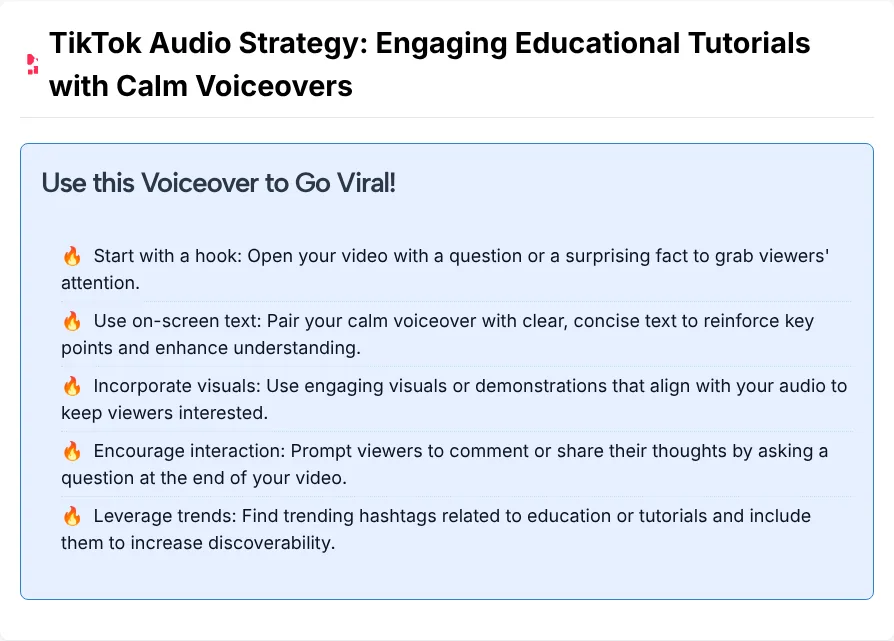
The result had a title, “TikTok Audio Strategy: Engaging Educational Tutorials with Calm Voiceovers,” and five tips:
- Start with a hook: a question or a surprising fact.
- Pair the calm voiceover with clear on-screen text.
- Use visuals or demonstrations that match the audio.
- Ask viewers a question at the end.
- Add trending hashtags related to education or tutorials.
Our read on the output:
- The tips fit the tone we picked, not our script. None of them mention hiking, headlamps or water filters. You’d get much the same advice for any calm tutorial.
- One tip clashes with the script. Our script ends with “Save this before your trip,” and the tool suggests ending on a question. Pick one ending, since two asks in a short clip compete with each other.
- The heading oversells. A box above the tips promises reach the tool can’t control. Read past it.
- There’s a promo line under the tips. It links to TLinky’s TikTok ad credit offer and isn’t part of the advice.
Getting a voice onto your TikTok video
Since this tool makes no file, the voice in your posted video has to come from TikTok or from you. Two routes in the app work for this.
Use TikTok’s own text-to-speech. The TikTok accessibility help page explains that text-to-speech reads text on a video out loud: tap Text on the side panel, type your words, then tap that text and select Text-to-speech.
Record your own voiceover. TikTok Support’s guide to editing videos and photos says to tap Voice on the side panel, tap Record, then tap Done to save the voiceover, with the option to add a voice effect before you tap Save.
Either way, this tool is useful just before that step. Play the script at a few speeds, hear where it drags, and fix the wording before you record or type it into TikTok.
Turning the AI tips into a better script
The tips are general, so turn each one into a change you can hear. Here’s how we’d apply them to our test script:
| Tip from the tool | Change to the script |
|---|---|
| Start with a hook | Open with “Most first-timers forget one of these three things.” |
| Pair the voiceover with on-screen text | Show “headlamp,” “water filter” and “extra layer” as each one is named |
| Ask a question at the end | Swap “Save this before your trip” for “Which one would you forget?” and keep only one ending |
| Use trending hashtags | Pick tags that describe the video, such as hiking gear, rather than general tutorial tags |
For the on-screen lines, the TikTok video title generator writes short text options you can edit, and the TikTok hashtag generator suggests tags from a topic. If the closing question gets answers, the TikTok comment generator can draft a few replies to start from.
When a browser voice preview helps
A quick listen in the browser is most useful before you commit to a recording:
- Checking pace. Hearing a script read aloud shows which sentences run long. Cut those before you film.
- Testing a faster or slower read. Move the speed slider and replay to decide how quickly you want to talk.
- Hearing on-screen text the way TikTok’s text-to-speech might read it. The voices differ, but a stumble in one voice usually means the sentence needs work.
- Writing for a client. Play a draft for someone else before anyone records.
TLinky has more free tools for scripts, captions and ads on the TikTok tools page.
Questions about the TikTok AI voice generator
Can I download the voiceover as an MP3?
No. The tool plays the script through your browser and doesn’t create an audio file. To get a voice into your video, add it in the TikTok app with its text-to-speech option or record your own voiceover.
Is this the voice TikTok uses for text-to-speech?
No. The voices here come from your own browser and device, not from TikTok. For TikTok’s own text-to-speech voice, add the text in the TikTok app’s editor.
Why does the voice list say Loading Voices or stay empty?
The list fills from the text-to-speech voices your browser offers. If it stays empty, try another browser or device. The tips need a voice picked too, because the form marks that field as required.
Do gender, accent and tone change how the voice sounds?
No. The form labels those three fields “Context for AI,” so they shape the tips. What you hear depends on the voice you pick from the list and the speed and pitch sliders.
Are the tips written for my script?
The tips are written for the context you send, and they can be broad. In our test the five tips matched the calm tutorial tone we chose but never mentioned the hiking gear in our script, so treat them as a checklist and apply them yourself.
What speed and pitch should I start with?
Start at the defaults, 1.0 for both, and move one slider at a time. Speed runs from 0.5x to 2.0x and pitch from 0.0 to 2.0. These settings only change the preview in your browser, since the tool makes no file and TikTok’s text-to-speech uses its own voices.