
TikTok Conversion Rate Calculator
Enter views or link clicks, conversions and a target rate to get your TikTok conversion rate and whether it beats, nearly meets or misses your goal.
Grow your Business & Social Media Marketing
- Branded Link Shortener
- QR Code Generator
- Bio Page Builder
- Tracking & Analytics
- 16+ Integrations
Tools You May Also Need for TikTok Ads
What the calculator works out
The calculator divides your conversions by the views or link clicks you enter and multiplies by 100. In our test, 2,400 clicks and 31 sales returned 1.29%. It then compares that rate with a target you set and shows one of three messages.
It runs in your browser with the numbers you type. Nothing goes to TikTok, and nothing is saved.
Three fields, all required
The form needs all three numbers before it calculates:
- Total Video Views / Link Clicks: the number you divide by. It has to be at least 1.
- Total Conversion Events (Sales, Sign-ups, etc.): the actions you count as a conversion.
- Target Conversion Rate (%): the field starts at 1.5. Change it to your own goal.
Click Calculate Rate for the result. Reset clears the first two fields and puts the target back to 1.5.
Our test: 31 sales from 2,400 clicks
We tested the calculator on November 4, 2026, with numbers for a fictional Ohio candle brand selling a $28 candle: 2,400 link clicks, 31 sales and the starting 1.5% target. The answer appeared as soon as we clicked, with no request to a server.
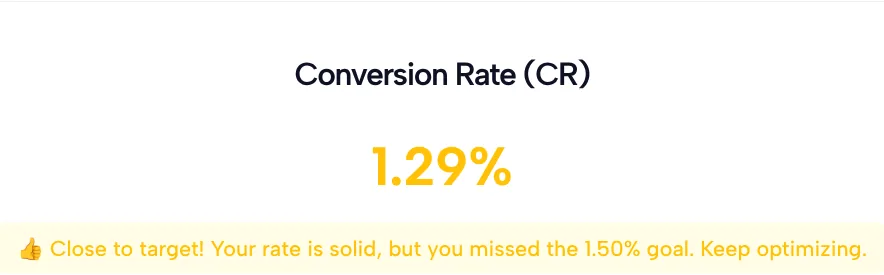
In our test, 31 divided by 2,400 came to 1.29%, shown in yellow with “Close to target!” Reaching 1.5% on 2,400 clicks takes 36 sales, so our test fell five sales short.
How the tool picks its message
The message depends only on how your rate compares with your target. We read the calculator’s live script on November 4, 2026, to see the rules:
- If your rate meets or beats the target, you get “Congratulations!” and a note that you exceeded your target.
- If your rate reaches at least 75% of the target but not the target itself, you get “Close to target!”
- If your rate is lower than that, you get “Action Needed,” with a nudge to review your video and landing page.
If you keep the 1.5% target, the “Close to target!” band starts at 1.125%.
The color of the number follows fixed bands and ignores your target. If the rate is 3.0% or more, it’s green; from 1.5% it’s blue, from 0.5% yellow, and below 0.5% red. For example, a 1.6% rate against a 2% target shows in blue but still reads “Close to target!” Go by the message, not the color.
Views, clicks or impressions: pick one base
Use link clicks to judge how well your landing page turns visitors into buyers, and views for organic posts. Whichever you pick, compare rates built on the same base only.
TikTok Ads Manager uses a third base. TikTok’s basic metrics page defines Conversions as the number of times an ad resulted in your selected optimization event, Clicks (destination) as clicks that lead to a specified destination, and Conversion rate (CVR) as the percentage of conversions out of all impressions. That’s why the CVR column in Ads Manager looks much lower than a rate per click.
For example, if our test’s 31 sales had come from 120,000 impressions, the Ads Manager style rate would be 0.026%, next to 1.29% per click. To match Ads Manager, enter impressions in the first field. To judge your landing page, enter Clicks (destination). Our guide to the TikTok ad metrics worth tracking explains where each column fits.
Set a target from your own numbers
The target field starts at 1.5, but that’s a starting value, not a TikTok average. A target that means something comes from your costs: divide what a click costs by what you keep from one sale.
For example, if a click costs $0.50 and you keep $14 from a $28 candle, you need 0.50 / 14 = 3.57% of clicks to buy just to break even. At our test’s pace of 31 sales per 2,400 clicks, each sale would cost about $38.71 in clicks, more than the candle’s price.
So a rate the tool calls “Close to target!” can still lose money. Set the target to your break-even rate, or a bit above it, and the message starts to mean something. Our TikTok advertising cost guide explains how the auction sets what you pay per click.
When the rate comes in low
Work through the steps between the click and the sale, in this order:
- Is the conversion counted? If your pixel event doesn’t fire on the thank-you page, sales go missing from the count. The TikTok Pixel Setup Helper shows where event code goes.
- Does the page match the ad? The TikTok Landing Page Analyzer, linked in the tools above, gives a quick second opinion on your page description.
- Are the clicks the right people? A high CTR with a low conversion rate can mean the ad promises something the page doesn’t sell.
- Is the sample big enough? On 200 clicks, one extra sale moves the rate by half a point. Wait for more data before you cut an ad.
Using it for organic videos
The calculator works for organic posts too. Use the video’s views as the base and count actions you can trace back to that video, such as sign-ups from a link in your bio or uses of a code you mention only in that video. A trackable short link makes those clicks easier to count per video.
Rates built on views run far lower than rates on clicks, so compare organic videos with each other, not with your ads.
Limits
- Whole numbers only. Views and conversions take whole numbers.
- One result at a time. Nothing is saved, so note each result before you reset.
- No benchmark. The starting target of 1.5 isn’t a TikTok figure, and the tool shows no average to compare with.
- Colors ignore your target. The message is the part that compares with your goal.
Conversion Rate Calculator FAQ
Is 1.5% a good TikTok conversion rate?
In our test the target field started at 1.5%, but the tool gives no source for it and shows no TikTok average. A good rate for you is one above your break-even rate: what a click costs divided by what you keep from each sale.
What does Close to target mean?
If you see it, your rate reached at least 75% of your target but not the target itself. In our test, 1.29% against a 1.5% target landed in that band, five sales short of the goal on 2,400 clicks.
Should I divide by views or by link clicks?
Use link clicks for paid ads when you want to judge the landing page, and views for organic videos. The two give very different rates, so only compare results that use the same base, and write down which one you used.
Why is my rate blue when the message says I missed the target?
The color comes from fixed bands that ignore your target, while the message compares your rate with the target. In our reading of the script, any rate from 1.5% to just under 3.0% shows blue, even if your goal is higher.
Can I use the calculator for organic TikTok posts?
Yes. Enter the video’s views as the base and the actions you can trace to that video, such as sign-ups from a bio link or a video-only discount code. Compare organic videos with each other rather than with ads.
Does the calculator save or send my numbers?
No. It calculates in your browser, and in our test it made no server request. Reset clears views and conversions and sets the target back to its starting value, so note your result first.