
A WiFi QR code is a scannable code that stores your network name and password so a guest connects by scanning it with a phone camera instead of typing anything in.
Create one for free by choosing the WiFi type in a QR code generator, entering your network name, password, and security type, then downloading and printing the code.
Typing a long WiFi password on a phone keyboard is slow and error-prone, especially for guests, customers, or coworkers who only need access once. A WiFi QR code removes that friction entirely.
In this article, you will learn:
- Whether your phone can already do this without any generator
- How to create a WiFi QR code in under a minute
- What actually gets encoded inside a WiFi QR code
- Why some WiFi QR codes fail on newer phones, and the fix most generators skip
- Where a printed WiFi QR code works best
Unlock the Power of QR Codes! with 14+ different types of QR codes!
Elevate your marketing game with TLinky’s QR Code Generator. Create dynamic, eye-catching QR codes in seconds.
Key Takeaways
- A WiFi QR code encodes your network name, password, and security type directly. Scanning it connects the device without anyone typing a password.
- Use a static QR code type for WiFi, since the network name and password rarely change and do not need click tracking.
- Many QR generators write WPA3 networks as
T:SAEin the code, which fails on phones that only recognizeWPA. UsingWPAas the type works across WPA, WPA2, and WPA3 networks. - TLinky’s WiFi QR tool only asks for network name, password, and encryption type. It does not have a hidden-network toggle, so a code made for a hidden SSID may need the guest to tap “Join Other Network” manually after scanning.
- Test the printed code on both an iPhone and an Android phone before handing it out or posting it publicly.
- You may not need a generator at all: Android (10+) and iPhone (iOS 18+) can both create a WiFi QR code natively from a device already connected to the network.
Quick Answer
To create a WiFi QR code, use a QR code generator’s WiFi type, enter your network name (SSID), password, and security type, then generate and download the code. Scanning it lets a phone join the network automatically, without the guest typing the password. Keep the code as a static type since WiFi credentials rarely change.
What’s Actually Inside a WiFi QR Code
A WiFi QR code does not link to a webpage. It encodes a short text string in a format phones recognize as network configuration data, following a specification maintained by ZXing, the open-source barcode scanning library most phone cameras are built on.
The string looks like this: WIFI:T:WPA;S:mynetwork;P:mypassword;;. The T field is the security type, S is the network name, and P is the password. Two semicolons close the string. If your network name or password contains a comma, semicolon, quote, colon, or backslash, that character needs a backslash in front of it or the code can fail to scan correctly.
This format is why a WiFi QR code belongs with the other everyday business uses of QR codes: it is a small piece of structured data, not a link, which is also what makes it fast to scan and part of the broader growth in scanning behavior tracked in our QR code statistics report.
Native camera support for this format goes back to iOS 11 on iPhone and has been standard on Android for years, so almost any phone made in the past several years reads it without a separate scanner app.
Do You Even Need a Generator?
Not always. Both Android and iOS can create a WiFi QR code natively, without any third-party tool, if you’re already connected to the network on that device.
On Android, open Settings, go to Network & Internet, tap the connected Wi-Fi network, then tap Share to display a QR code others can scan, a feature Google documents in its own Android Help center and that has worked this way since Android 10. On iPhone running iOS 18 or later, open the Passwords app, tap Wi-Fi, select the network, then tap Show Network QR Code, per Apple’s own support guide.
A generator is still worth using when you need to create a code for a network you’re not currently connected to from that device, want to brand the code with your colors or logo, or need to generate and print several codes for multiple locations at once, since the native phone options only work one at a time from a device already joined to that network.
How to Create a WiFi QR Code: Step-by-Step
The whole process takes under a minute once you have the network name and password on hand.
1. Open a QR Code Generator and Select WiFi
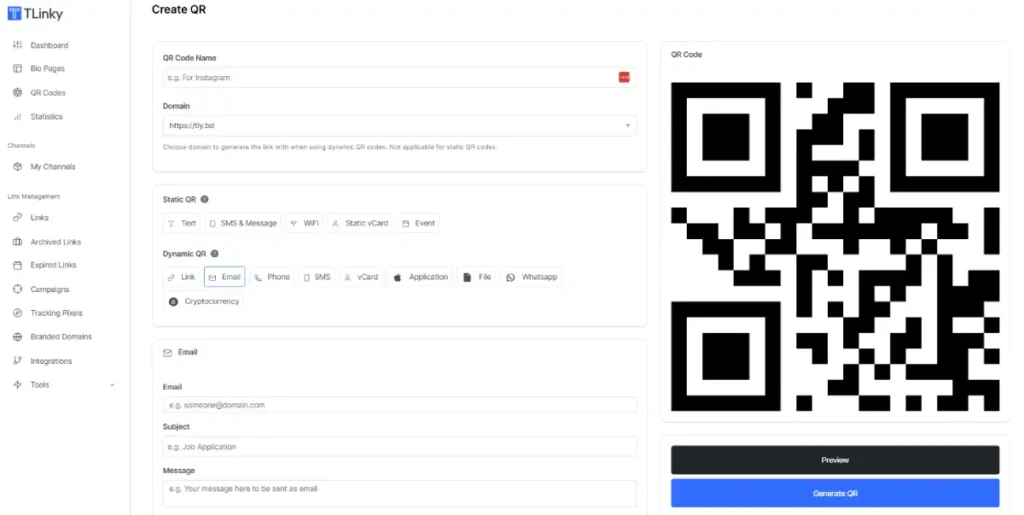
In TLinky’s QR code generator, select Create QR, then choose the WiFi type. This is a static QR code type, meaning the network details are written directly into the code rather than pointed to a link you can edit later.
2. Enter Your Network Name and Password
Type your network name (SSID) exactly as it appears in your router settings, including capitalization.
Enter the password exactly as set. A single mismatched character breaks the connection even though the QR code itself scans fine.
3. Choose the Correct Encryption Type
In our testing, TLinky’s Encryption dropdown offers three options: WPA/WPA2, WEP, and No Encryption.
Select WPA/WPA2 for any router using WPA, WPA2, or WPA3 security, which covers nearly every router sold in the past decade.
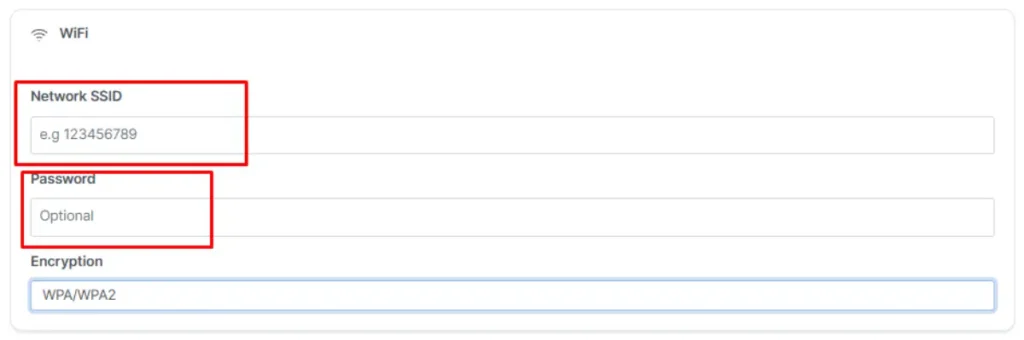
Select WEP only for older routers still using that outdated standard, and No Encryption only for a genuinely open network.
4. Generate, Download, and Test
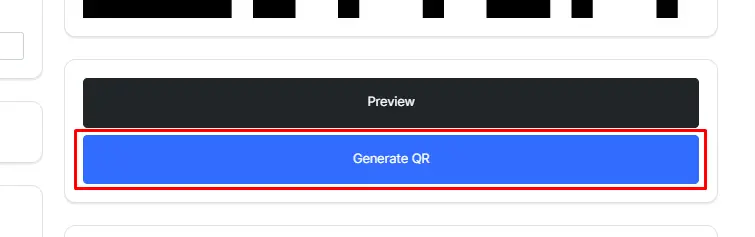
Download the code as a PNG or SVG file. Before printing it anywhere, scan the code with both an iPhone and an Android phone to confirm it prompts a join request and actually connects.
If a scan doesn’t behave as expected, run the file through a QR code decoder to see exactly what text it encodes and catch a typo before it reaches print.
5. Print and Place It Where Guests Will Use It
Print the code at a size that is easy to scan from a normal distance, such as a table tent, a framed sign near an entrance, or a card in a guest welcome folder.
Why Some WiFi QR Codes Don’t Work on Newer Phones
The most common WiFi QR code failure involves WPA3 networks. The ZXing specification defines valid security types as WEP, WPA, WPA2-EAP, or nopass. There is no separate WPA3 value in the spec.
Some QR generators write WPA3 networks using T:SAE instead, since SAE is the technical authentication method WPA3 uses internally.
The problem is that many phone cameras do not recognize SAE as a valid type and simply do nothing when scanned.
Writing T:WPA instead works across WPA, WPA2, and WPA3 networks, because phones treat WPA as the general-purpose value for all three.
If a WiFi QR code you created is not prompting a connection on some phones, this mismatch is the first thing to check.
Where to Use a WiFi QR Code
- Cafes and restaurants: Print it on a table tent or near the register so customers connect without asking staff for the password.
- Offices: Post it in a conference room or lobby for visitors and contractors who need guest access, one of the smaller ways QR codes support day-to-day business operations.
- Short-term rentals: Include it in a printed welcome guide or frame it near the router so guests connect the moment they arrive.
- Events and pop-ups: Add it to signage at a booth or venue where attendees need temporary WiFi access.
Common Mistakes to Avoid
- Skipping the scan test. A code that looks correct in the generator can still fail if the SSID or password was mistyped.
- Assuming every generator supports hidden networks. Some QR tools include a hidden-network toggle and some don’t. TLinky’s WiFi QR type doesn’t, so a code made for a hidden SSID may prompt a guest to join manually instead of connecting automatically.
- Using a dynamic code type for WiFi. WiFi credentials rarely change and don’t need click tracking, so a static code is the right fit here. See our breakdown of static versus dynamic QR codes if you’re unsure which type a different project needs.
- Posting the code somewhere public without realizing it. Anyone who scans a WiFi QR code gets your network password. Only post one publicly if you’re fine with strangers joining that network, such as a dedicated guest network.
Frequently Asked Questions
These are the questions people run into most once they try to create or troubleshoot a WiFi QR code.
Is a WiFi QR code safe to post publicly?
It depends on which network the code connects to. Posting a code for your main network gives anyone who scans it your real password, so it’s safer to create a separate guest network for any WiFi QR code posted in public view.
A guest network keeps visitor devices isolated from your other devices, which most routers support as a built-in setting, and it is one of several practical benefits QR codes bring to a business beyond marketing.
Can I use a WiFi QR code for a guest network with a different password?
Yes. Create the code using the guest network’s own SSID and password, not your main network’s credentials. This way, a code posted publicly only grants access to the isolated guest network.
The same static-versus-dynamic thinking applies to other business QR codes, like choosing a dynamic vCard QR code for a business card whose contact details might change later.
Does a WiFi QR code work if I change my password later?
No. A static WiFi QR code encodes the password directly, so changing your WiFi password makes every existing printed code stop working. You would need to generate and reprint a new code with the updated password.
Can I make a WiFi QR code without downloading an app?
Yes, if you’re already connected to the network on the phone you’re using. Android 10 and later lets you share a QR code straight from Wi-Fi settings, and iPhone running iOS 18 or later can generate one from the Passwords app.
For a network you’re not currently connected to, or if you want a branded, downloadable design, a generator like TLinky’s is still the faster option.
Why does my WiFi QR code scan but not connect?
The most likely causes are a mistyped SSID or password, a WPA3 network encoded as SAE instead of WPA, or a hidden network your generator doesn’t have a setting for. Regenerate the code after checking each of these, and test it again before printing.
Wrapping Up
A WiFi QR code only takes a minute to create, but the small details, exact SSID and password, the right security type, and testing before printing, decide whether it actually works. Get those right and it saves every guest the trouble of typing a password.
Ready to make one? Head to the QR code generator and test it before you print.