
Free AI YouTube Tags Generator
Generate relevant YouTube tags with TLinky’s free AI YouTube Tags Generator. Enter your video topic, keywords, audience and category, and get a tag set sorted by type. A meter shows how much of YouTube’s 500-character tag limit the set uses.
TLinky uses affiliate links. We may earn a commission if you purchase through them, at no extra cost to you.
AppSumo Bundle
80% OFF
- Hostinger Cloud
- Bolt.new
- Reclaim AI
- Emergent AI
- Pica
Hostinger
Web Hosting
95% OFF
More YouTube Creator Tools
Generate Relevant YouTube Tags with AI
Choosing the right YouTube tags is about relevance, not quantity. Instead of filling every available space with loosely related keywords, use tags that accurately describe your video’s topic and support the information already provided in your title and description.
TLinky’s AI YouTube Tags Generator creates organized tag suggestions based on your video title, target keywords, audience, and category. It also tracks YouTube’s 500-character tag limit, so you can check the length of the set before you copy it into YouTube Studio.
Free to use. No registration required.
How the AI YouTube Tags Generator Works
Enter your video’s details, choose how you’d like the tags generated, and the AI builds a structured tag list that’s ready to copy into YouTube Studio.

Enter Your Video Title or Topic
Start by describing what the video is actually about. This becomes the basis for your primary tag.
Examples:
- How to Set Up Email Automation in Mailchimp
- Inside Tesla Factory
- Best AI Tools for Students
- Healthy Meal Prep Ideas
- DSLR Photography Tips for Beginners
Add Your Target Keywords
Enter one or more keywords separated by commas. Your first keyword acts as the primary topic, while additional keywords help the AI understand related search terms and generate a more complete tag set.
Examples:
- mailchimp automation, email marketing tutorial
- factory tour, manufacturing process
- ai tools, student productivity
- budget gaming laptop, gaming pc
Add Your Target Audience (Optional)
Tell the generator who the video is for, so tags reflect realistic search intent instead of generic terms.
Select Your Video Category
Choose the category that best matches your content.
- How To: Step-by-step instructional content
- Review: Product, service, or app reviews
- Tutorial: In-depth educational walkthroughs
- Tips: Quick-hit advice and best practices
- Beginner: Introductory, entry-level content
- Advanced: Deeper, expert-level content
- Comparison: Head-to-head or “vs” style videos
- Shorts: Short-form, fast-paced content
Choose Your Number of Tags
Choose to generate 8, 10, 12, or 15 tags. A focused set of relevant tags is generally easier to manage than filling every available character with loosely related keywords.
Optionally Include Misspelling Variants
Toggle on “Include common misspelling / alternate-phrasing variants” to add realistic misspelled or reworded versions of your primary keyword. Only use it for spellings and wordings people actually search for.
Click Generate Tags
Click Generate Tags and the tool builds your tag list. Review the suggestions, click Copy All Tags, and paste the list into YouTube Studio, where you can remove or add tags before you save.

What You Get
You get a tag set grouped by type, a meter for YouTube’s 500-character limit, and a paste-ready list with a Copy All Tags button. In our test on November 2, 2026, the generated set used 157 of the 500 characters.
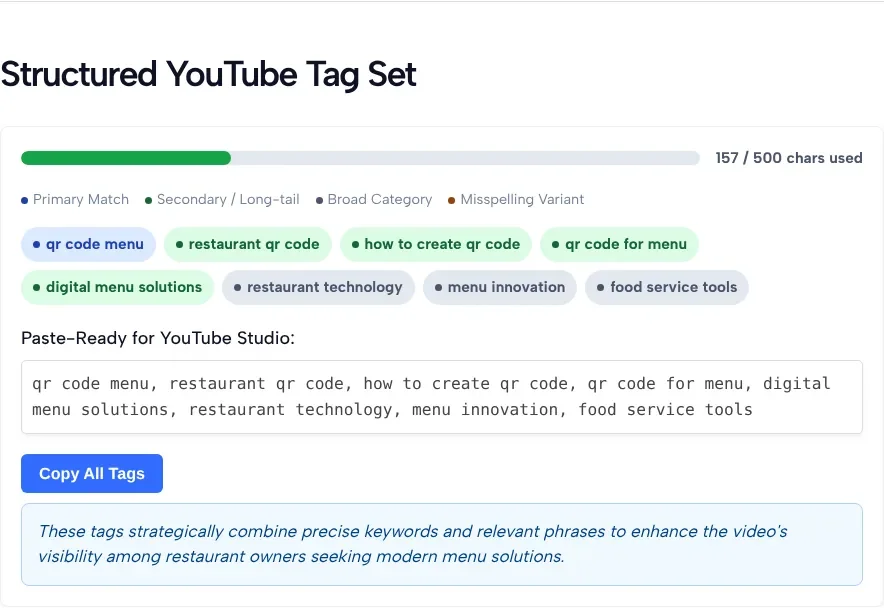
Primary Topic Tag
A tag based on your main keyword or video topic, marked Primary Match on the result screen.
Related Search Tags
Tags built from your keywords, topic, audience, and category to cover closely related search phrases. The result screen labels these Secondary / Long-tail.
Category Tags
Broader tags, labeled Broad Category, that add context about your video’s subject or niche.
Optional Alternate Variations
If you turn on the misspelling option, the set can include alternate spellings or wordings, labeled Misspelling Variant.
Character Usage
A bar and a count such as “157 / 500 chars used” show how much of the limit your tag set uses. The tool counts the tags joined by a comma and a space, the way the paste-ready list is written.
Copy-Ready Output
All tags appear as a comma-separated list in a box labeled Paste-Ready for YouTube Studio, with a Copy All Tags button.
Features of Our Free Tool
- AI-powered tag generation based on your video topic
- Generates relevant tags from your keywords, audience, and category
- Tracks YouTube’s 500-character tag limit
- Optional alternate spelling and wording variations
- Choose between 8, 10, 12, or 15 generated tags
- One-click copy for YouTube Studio
- Simple form: topic, keywords, audience and category
- Runs in your browser, with nothing to install
- Free to use with no registration required
Why Use This AI YouTube Tags Generator?
Choosing relevant tags is easier when they’re based on your video’s actual topic instead of a random list of popular keywords. TLinky’s AI YouTube Tags Generator helps you build a structured tag set from your title, keywords, audience, and content category, so there’s less to work out by hand when you prepare metadata for YouTube Studio.
While tags are only one part of YouTube SEO, they can still provide additional context about your video, particularly when they accurately describe the content and complement your title and description. This tool focuses on generating relevant, organized tags rather than simply filling the available character limit.
Important Note About YouTube Tags
YouTube tags are no longer one of the primary ranking factors. Your video’s title, description, thumbnail, audience retention, and viewer engagement have a much greater influence on discovery and recommendations.
Use tags to reinforce your video’s topic, include relevant variations where appropriate, and keep them closely aligned with your content. Avoid adding unrelated or misleading tags, as they provide little value and may create confusing metadata.
Tips for Better YouTube Tags
- Use your primary topic as the first tag whenever possible.
- Focus on relevant keywords instead of trying to fill the entire character limit.
- Keep your tags consistent with your video title and description.
- Include only alternate spellings that viewers actually search for.
- Review and edit AI-generated tags before publishing, so they match what’s actually in the video.
Who Should Use This AI YouTube Tags Generator?
This tool is designed for anyone who wants to create relevant, well-organized YouTube tags without manually brainstorming every keyword.
- YouTube creators
- Content marketers
- Businesses and brands
- Educators and online instructors
- Bloggers and publishers
- Product reviewers
- Gaming creators
- Travel vloggers
- Podcast creators
- Technology channels
- Marketing agencies
- Small business owners
- Anyone publishing videos on YouTube
Frequently Asked Questions
Is this AI YouTube Tags Generator free?
Yes. The tool is completely free to use and doesn’t require creating an account.
How does the AI generate YouTube tags?
The generator analyzes your video title, keywords, audience, and selected category to create a list of relevant tags. The suggestions are meant to match your video’s topic, and you can change them after you paste them into YouTube Studio.
Do YouTube tags still matter?
Yes, but they’re only one part of YouTube optimization. YouTube Help says tags play a minimal role in discovery and that your title, thumbnail, and description matter more. Relevant tags can still provide additional context, especially when they accurately describe your content.
How many YouTube tags should I use?
There is no official minimum or maximum number of tags. A focused set of relevant tags is easier to manage than one that fills the entire 500-character limit. Quality and relevance are generally more important than quantity.
What is YouTube’s tag character limit?
YouTube allows up to 500 characters across all tags combined, including commas and spaces. This tool helps you monitor that limit while generating your tag set.
Should my first tag be my main keyword?
Using your primary topic or keyword as one of your first tags can help keep your metadata organized and closely aligned with your video’s title and description. The exact order of tags is not publicly documented by YouTube as a ranking factor.
Should I include misspelled keywords?
Only when they represent common and realistic search variations. Adding unrelated or excessive misspellings isn’t recommended and can make your metadata less relevant.
Can I edit the generated tags?
Yes, but not inside the tool: its paste-ready box is read-only. Copy the list, paste it into YouTube Studio, and add, remove, or reorder tags there before you save.
Are YouTube tags more important than titles and descriptions?
No. Your title, description, thumbnail, and the quality of your content generally have a much greater impact on discovery. Tags work best as supporting metadata that reinforces your video’s topic.
Can I use this tool for YouTube Shorts?
Yes. The generator works for both standard YouTube videos and Shorts. Describe your content and pick the Shorts category if it fits your video.